
Manage Classrooms and Assignments
Keep classroom management organized by managing members, instructor roles, assignments, and leaderboard settings in one place.
Manage Members and Roles
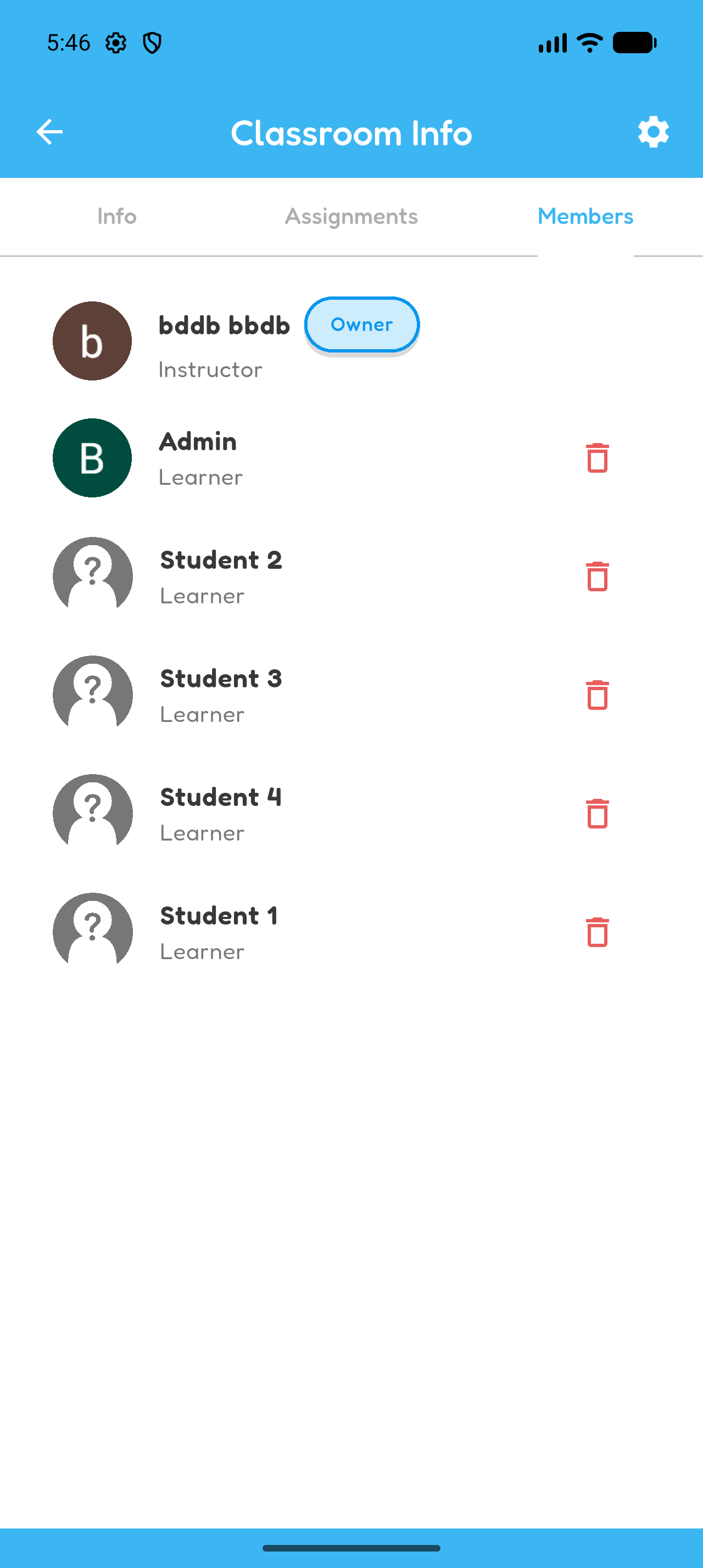
Open My Classrooms, select a classroom, and open Members to view students, instructors, their roles, and the classroom owner.
To remove a member, select the member, choose Remove from Classroom, and confirm.
View Classroom Leaderboard
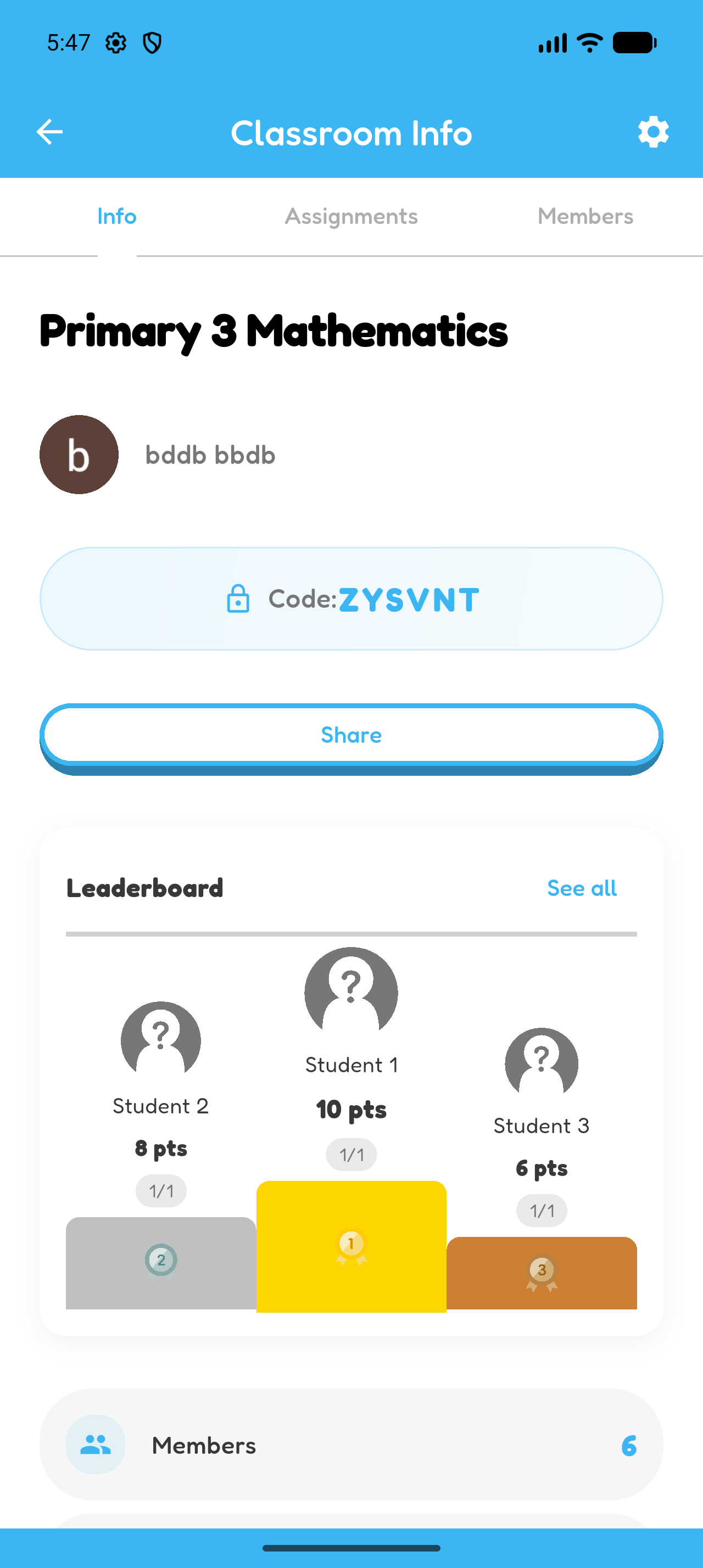
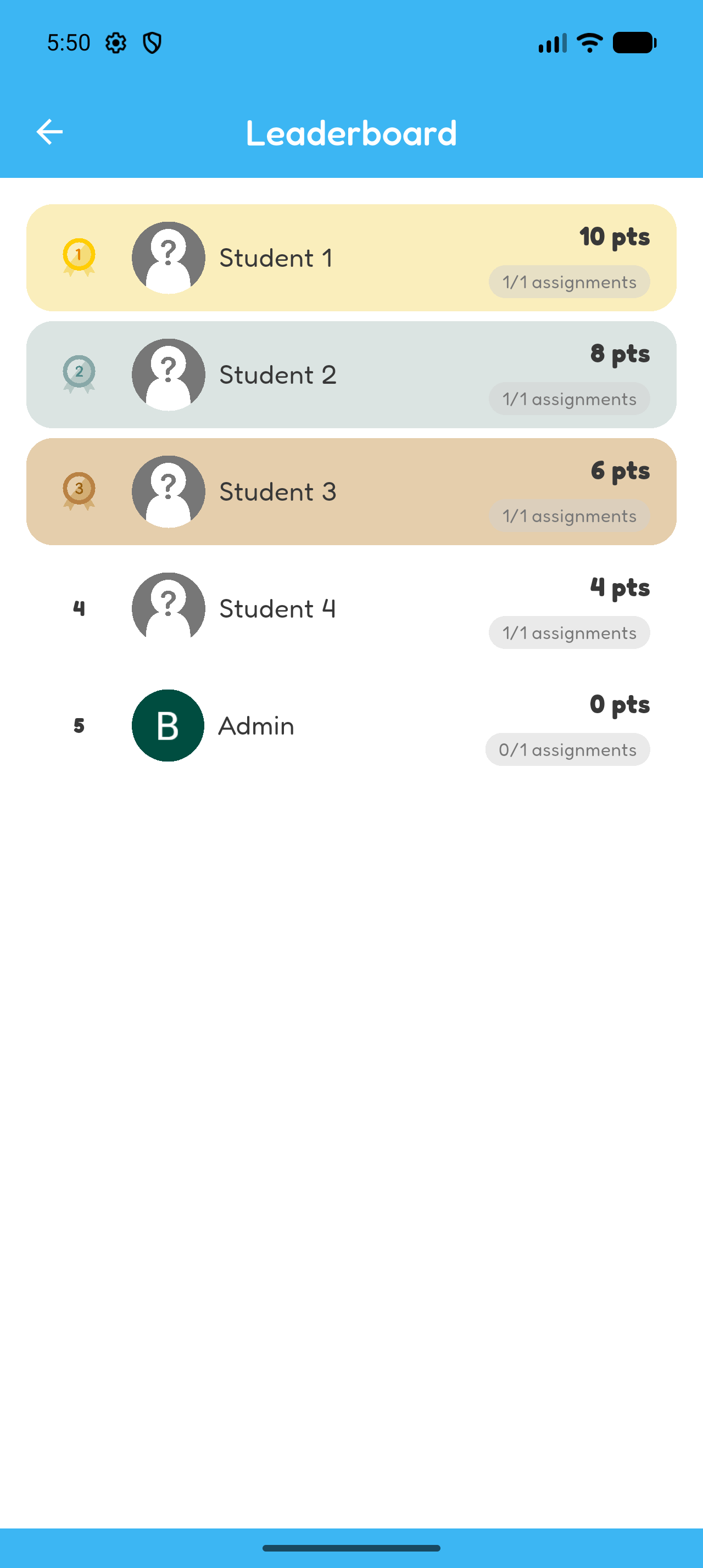
Open a classroom to see the leaderboard preview, then select See all. The full list shows each student’s total points across published assignments and completed assignments out of the total.
Control Classroom Leaderboard Visibility
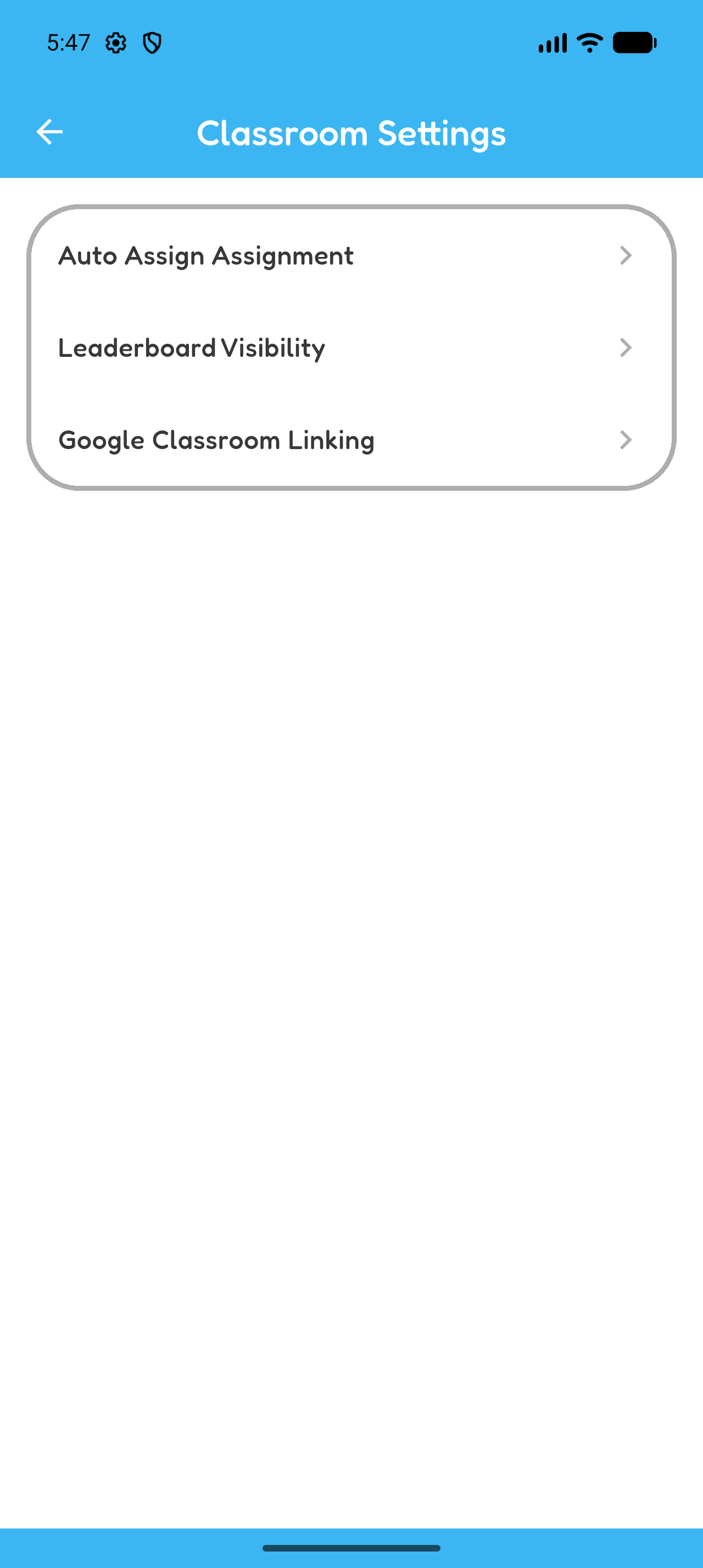
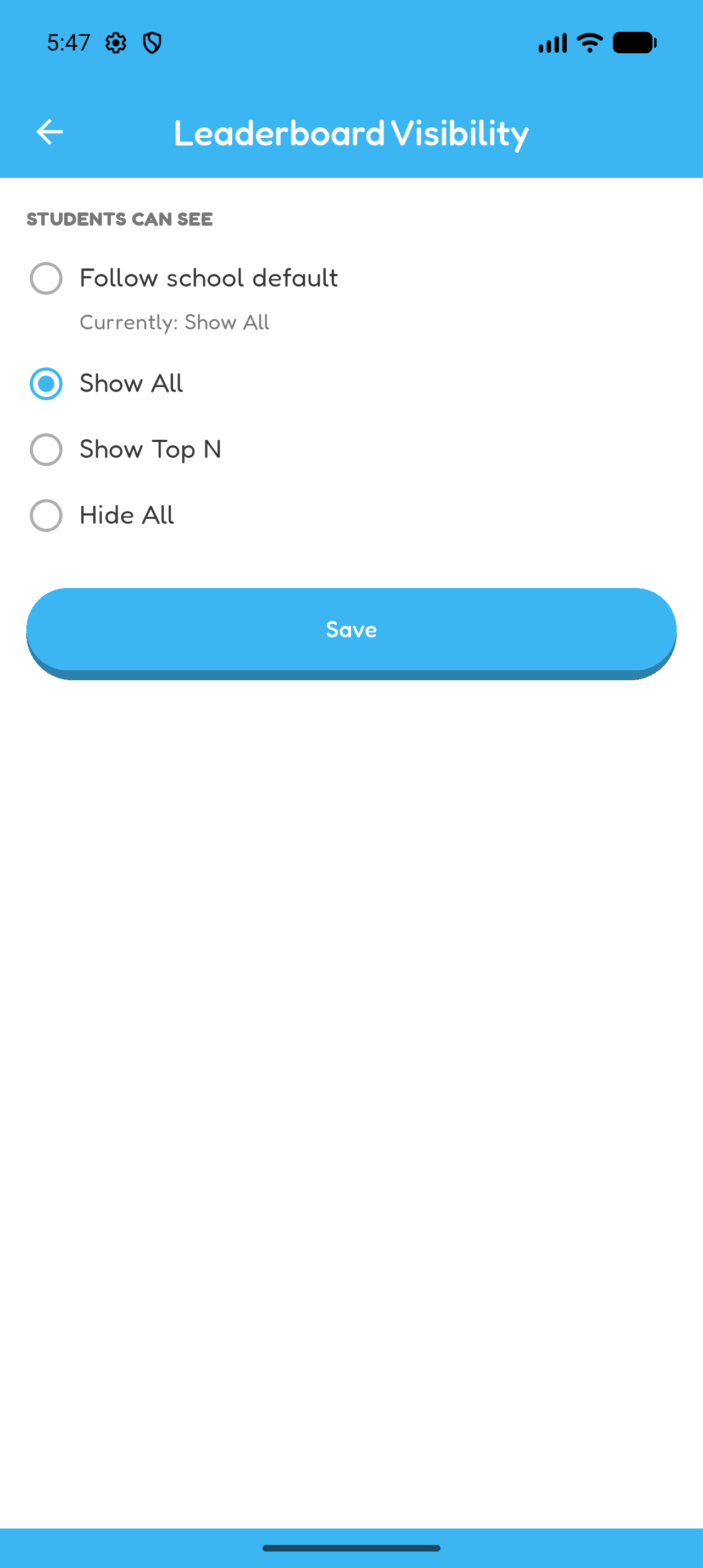
Open the classroom, then open Settings and Leaderboard Visibility.
- Show All shows the complete classroom and assignment leaderboards to students.
- Show Top N shows the selected leading positions. Choose 3, 5, 10, or enter a custom number.
- Hide All hides the classroom and assignment leaderboards from students.
- For a School classroom, Follow school default applies the school’s leaderboard setting.
Students outside the visible Top N can still see their own position. These options control student access; instructors can still view the full leaderboards.
Only the classroom owner can change the option. A school-managed setting may be read-only.
Manage Existing Assignments
An assignment may appear as:
- Unpublished
- Published
- All Completed
- Closed
- Closed (Missing Submissions)
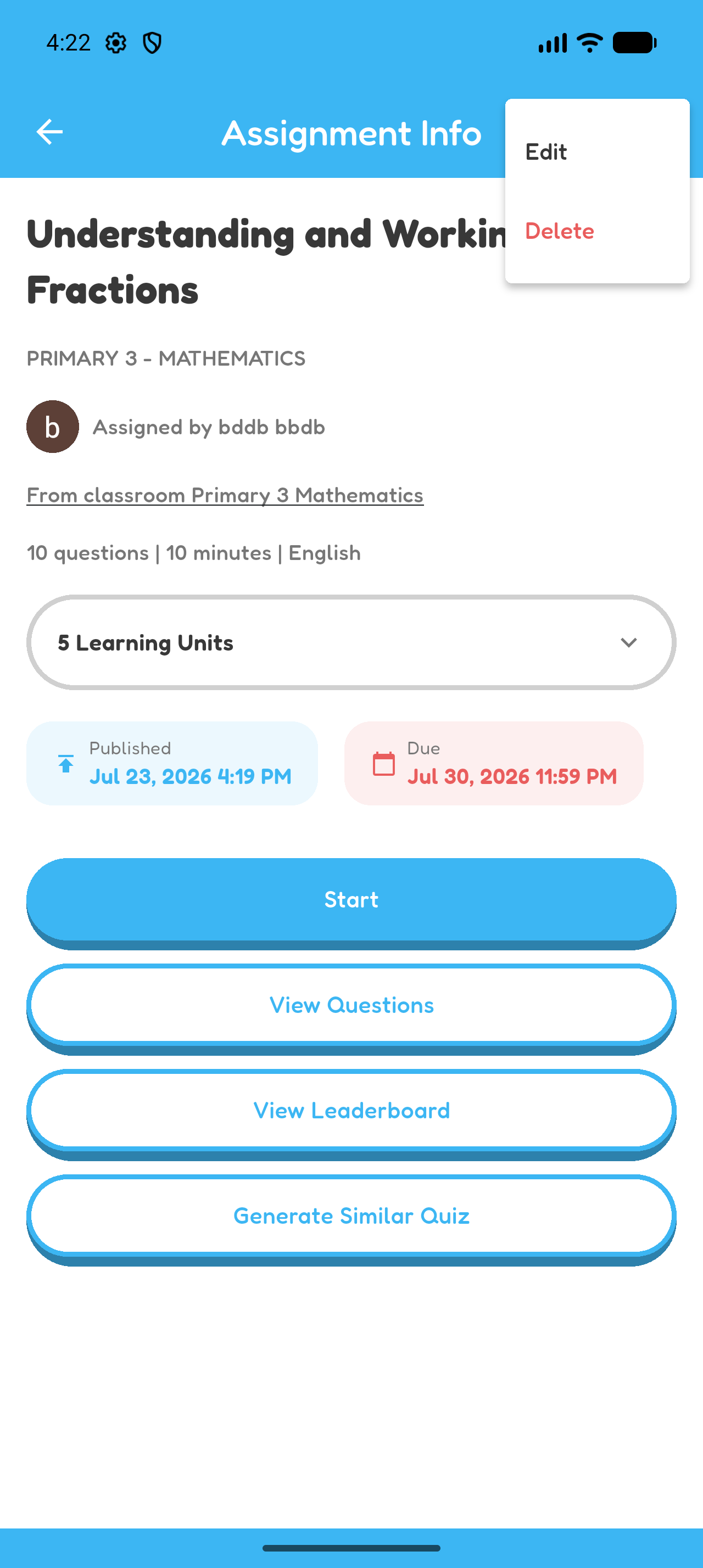
Open an assignment to view its questions and answers. Edit its title, notes, or due date when permitted. The publication time cannot be edited.
Deleting an assignment cannot be undone. If the classroom is linked to Google Classroom, the corresponding Google coursework is also deleted.
You can now maintain your classroom, assignments, members, and leaderboard settings.