
Connect Google Classroom
Reduce repeated administration by importing matching students and synchronizing Hoppy assignments and scores with Google Classroom.
- Student import: Match Google Classroom students by email, add existing Hoppy users, and email invitation codes to unmatched students.
- Assignment sync: Create, update, or delete corresponding Google Classroom classwork when Hoppy assignments change.
- Score sync: Send completed Hoppy assignment percentages to Google Classroom as grades out of 100.
- Connection management: Check the status, relink authorization, switch classes, or unlink from Classroom Settings.
Connect Google Classroom and Sync Students
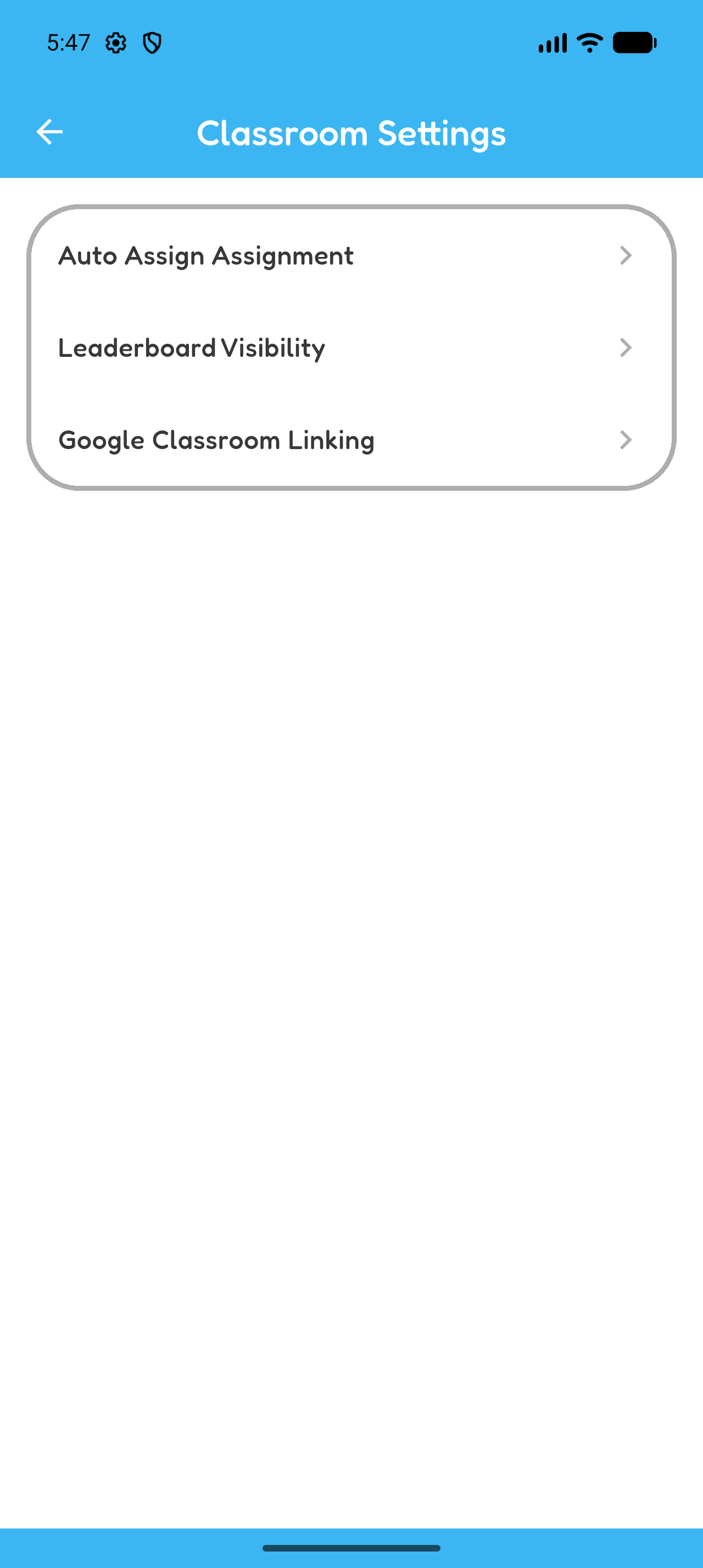
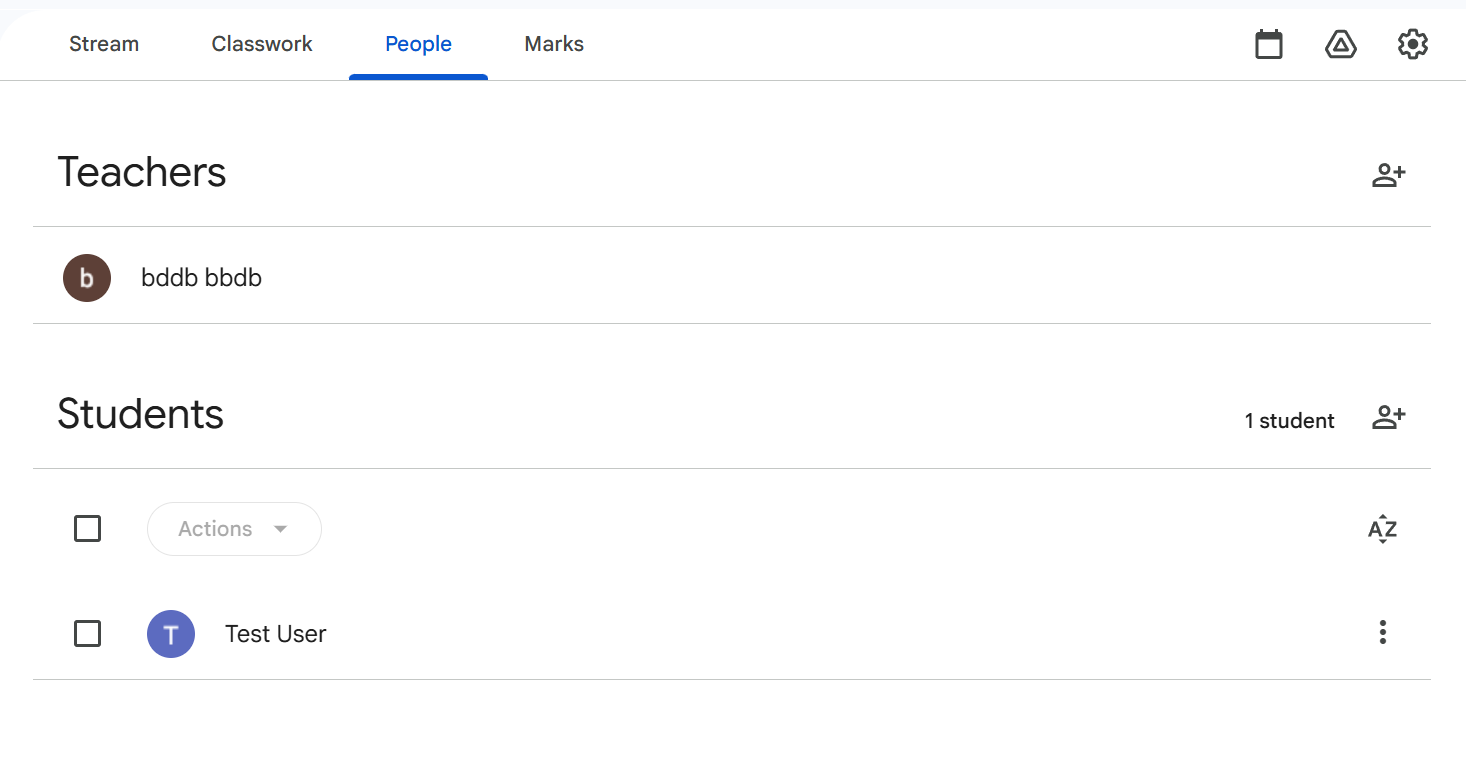
This chapter is for schools using Google Classroom. Open the Hoppy classroom, then open Settings and Google Classroom Linking.
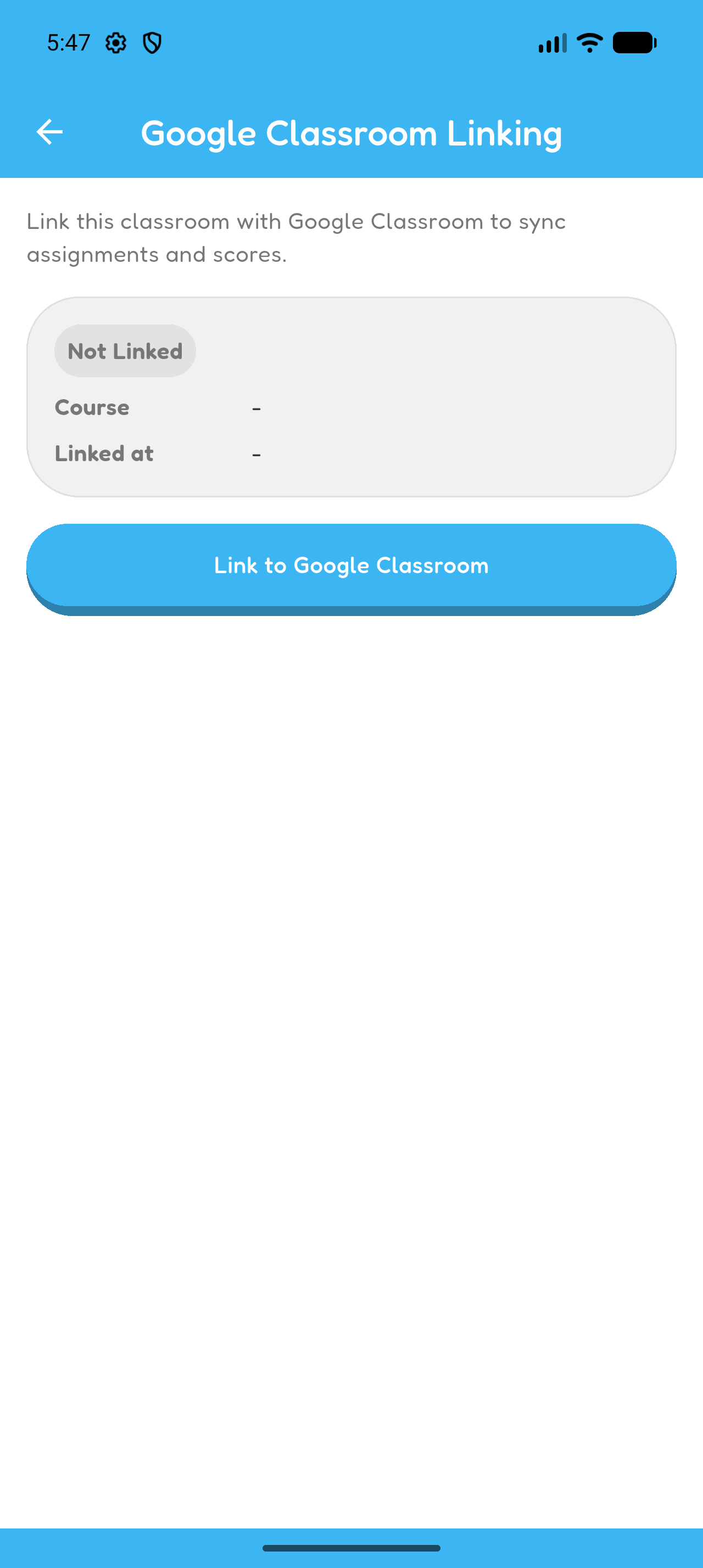
- Select Link to Google Classroom and authorize the Google account.
- Select the Google Classroom class.
- Keep Import students selected if you want to import the roster.
- Select Link.
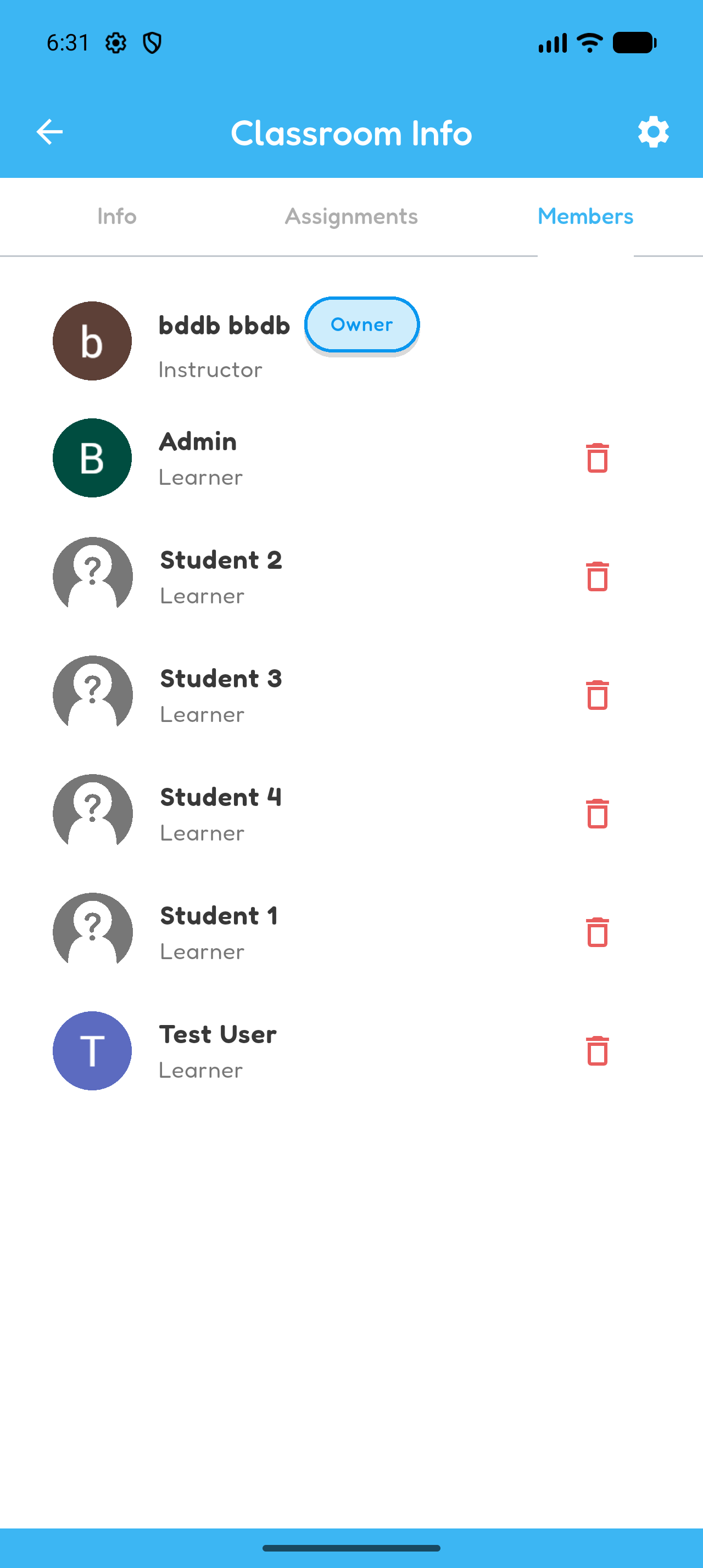
Roster matching uses each student’s email address. Matching Hoppy accounts are added to the classroom; unmatched students receive an email invitation code.
Only the classroom owner can manage the link. Google Classroom linking is available for School and Public classrooms.
Sync Assignments and Scores
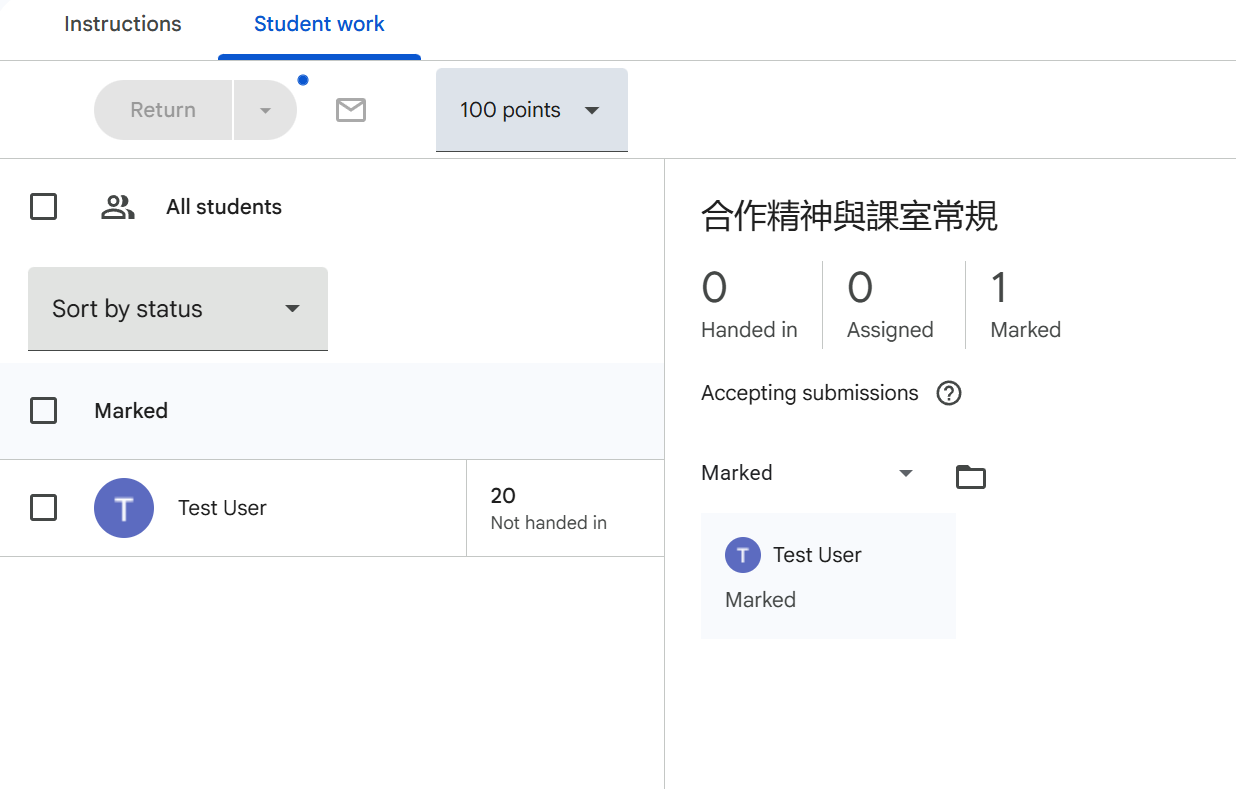
- Publishing a Hoppy assignment creates corresponding Google Classroom coursework.
- Changing its title or deadline updates the Google coursework.
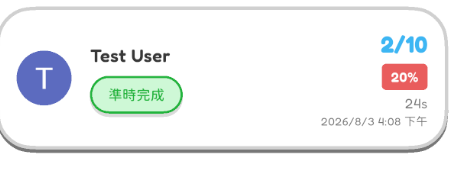
- Completing the Hoppy assignment sends the student’s percentage score as a grade out of 100.
- Deleting the Hoppy assignment deletes the corresponding Google coursework.
Manage or Unlink Google Classroom
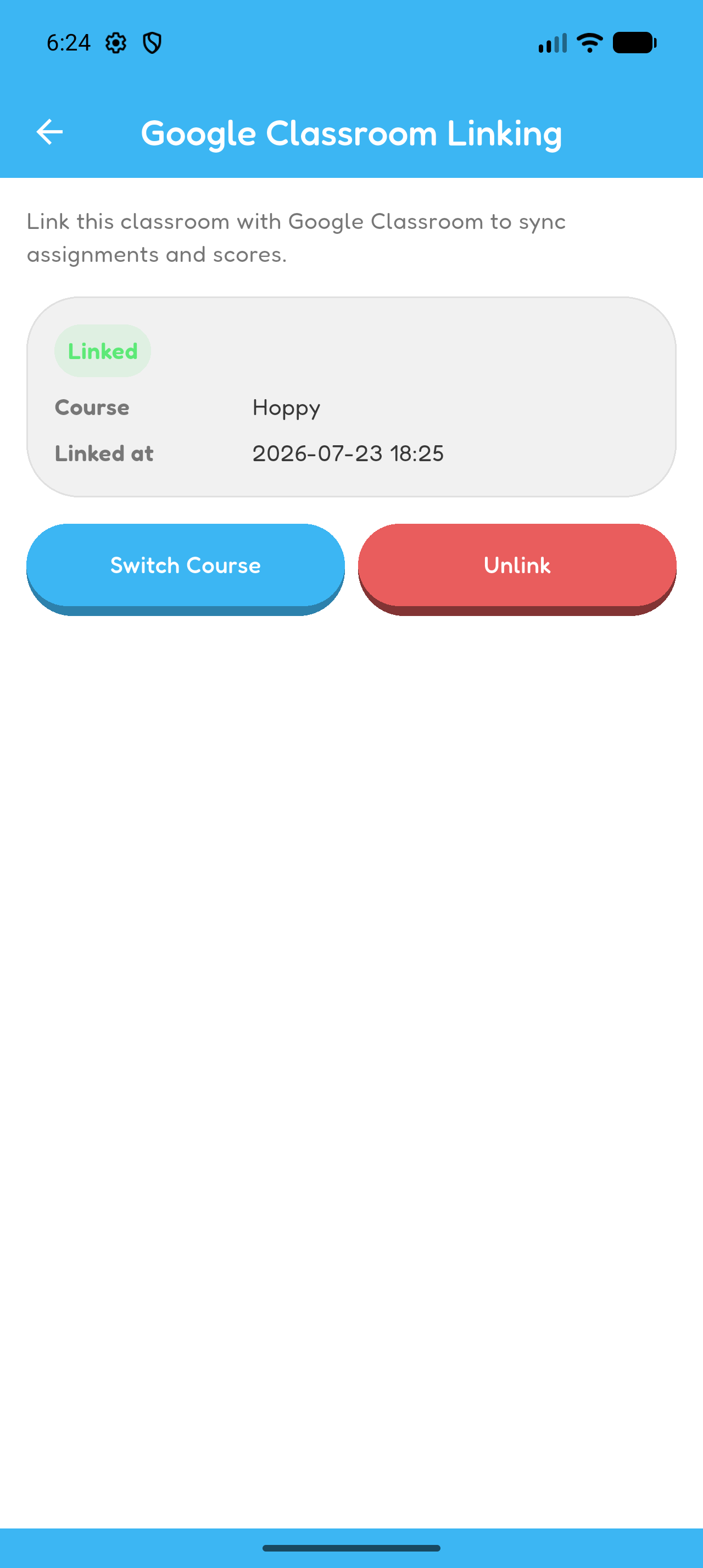
Open the Hoppy classroom, then open Settings and Google Classroom Linking. The connection status appears as Not Linked, Linked, or Linked (Action Required). Only the classroom owner can manage this connection.
- Relink restores an expired or inactive Google authorization so synchronization can continue.
- Switch Course connects future assignments and scores to another Google Classroom class. Existing classwork stays in the original class and does not move.
- Select Import students while linking or switching if you want to import that class roster. Student import occurs at that time; it is not a continuous roster sync.
- Unlink stops future assignment and score synchronization. Existing classwork and synchronized scores remain in Google Classroom.
- Students already imported into Hoppy remain members of the Hoppy classroom after unlinking.
Your Hoppy classroom is connected to Google Classroom.