
Publish Your Quiz as a Classroom Assignment
Control when students can access a quiz and track completion and results by publishing it as a scheduled classroom assignment.
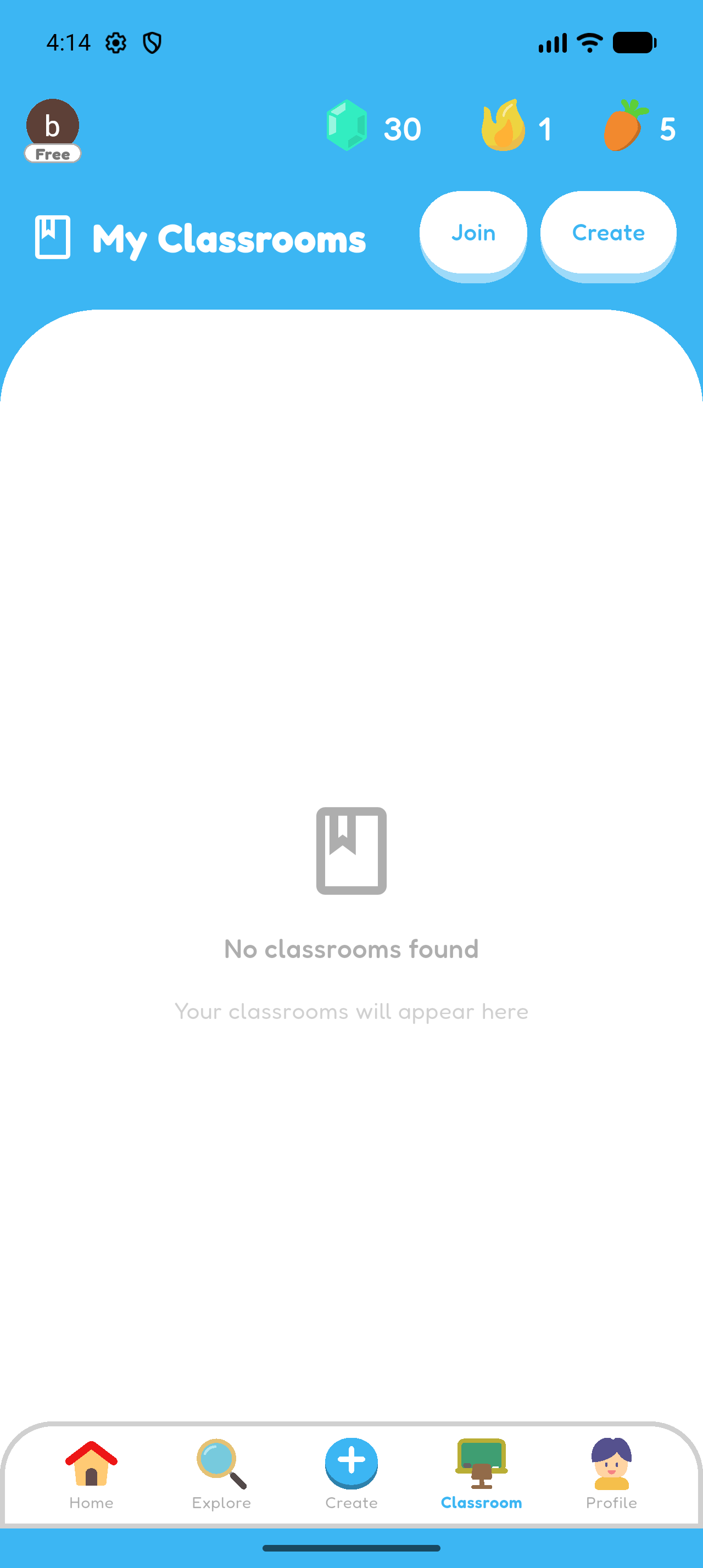
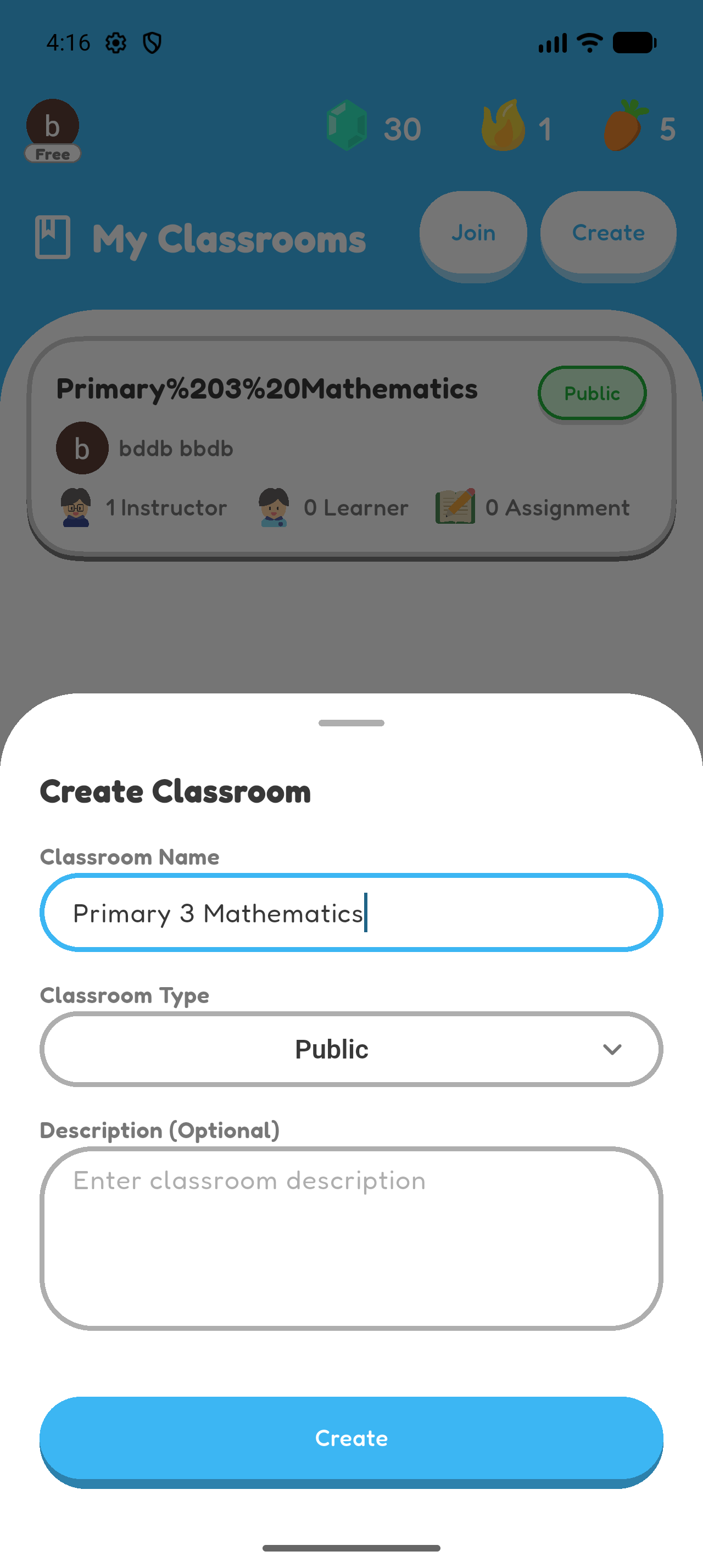
Choose or Create a Classroom
- Open My Classrooms.
- Select an existing classroom, or create one and give it a recognizable name.
- For members of one school. A teacher, manager, or administrator associated with that school can create one. The owner and instructors can manage it, and only students from the same school can join. Its visibility can be Private or School Only; learner joining follows the classroom policy and instructors join by invitation.
- Not restricted to one school and can be created by any Hoppy user. The owner and instructors can manage it. Learners may join according to the classroom join policy (open by default), while instructors join by invitation. Public or Unlisted visibility controls discovery, and non-members see anonymized names.
- A private, system-created space for one learner and their linked parents or tutors; teachers cannot choose this type manually. The learner place is closed to anyone except that child, adults join by invitation, and the owner, instructors, and linked parents can manage the classroom.
Google Classroom linking is available only for School and Public classrooms.
Invite Students
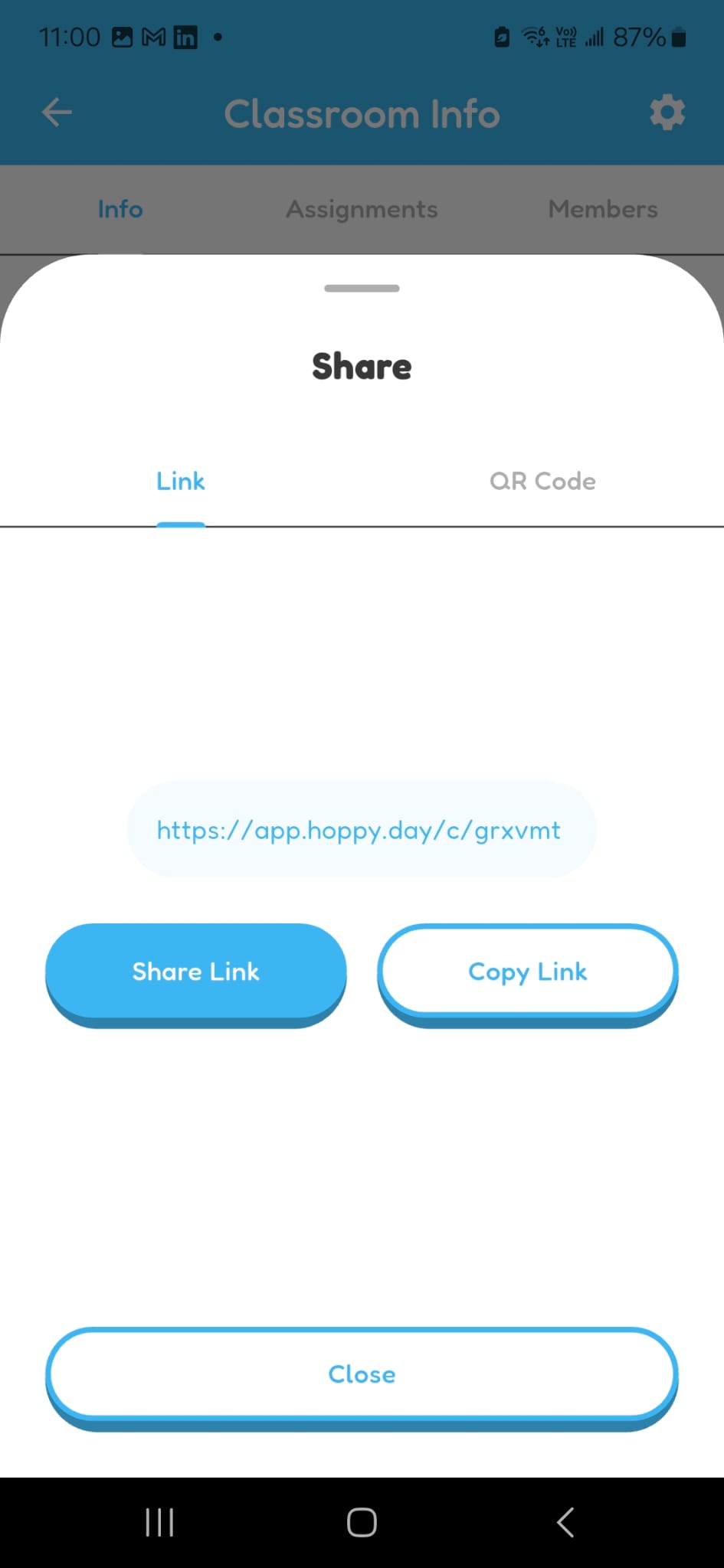
- Share or copy the classroom link.
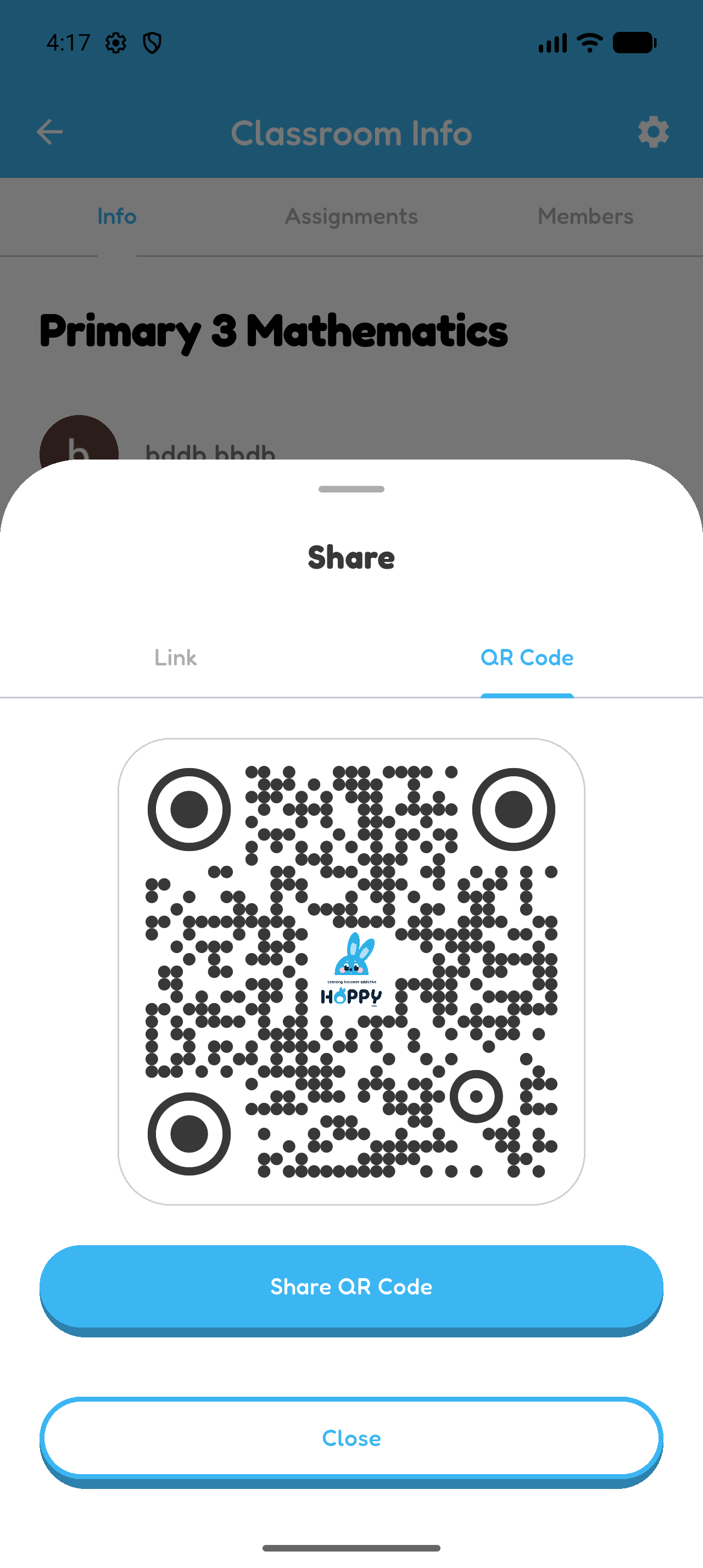
- Show or share the classroom QR code.
- Give students the six-character classroom code to enter through Join Classroom.
Open Members to see who has joined.
Google Classroom roster import is another option for linked School and Public classrooms. See Chapter 8.
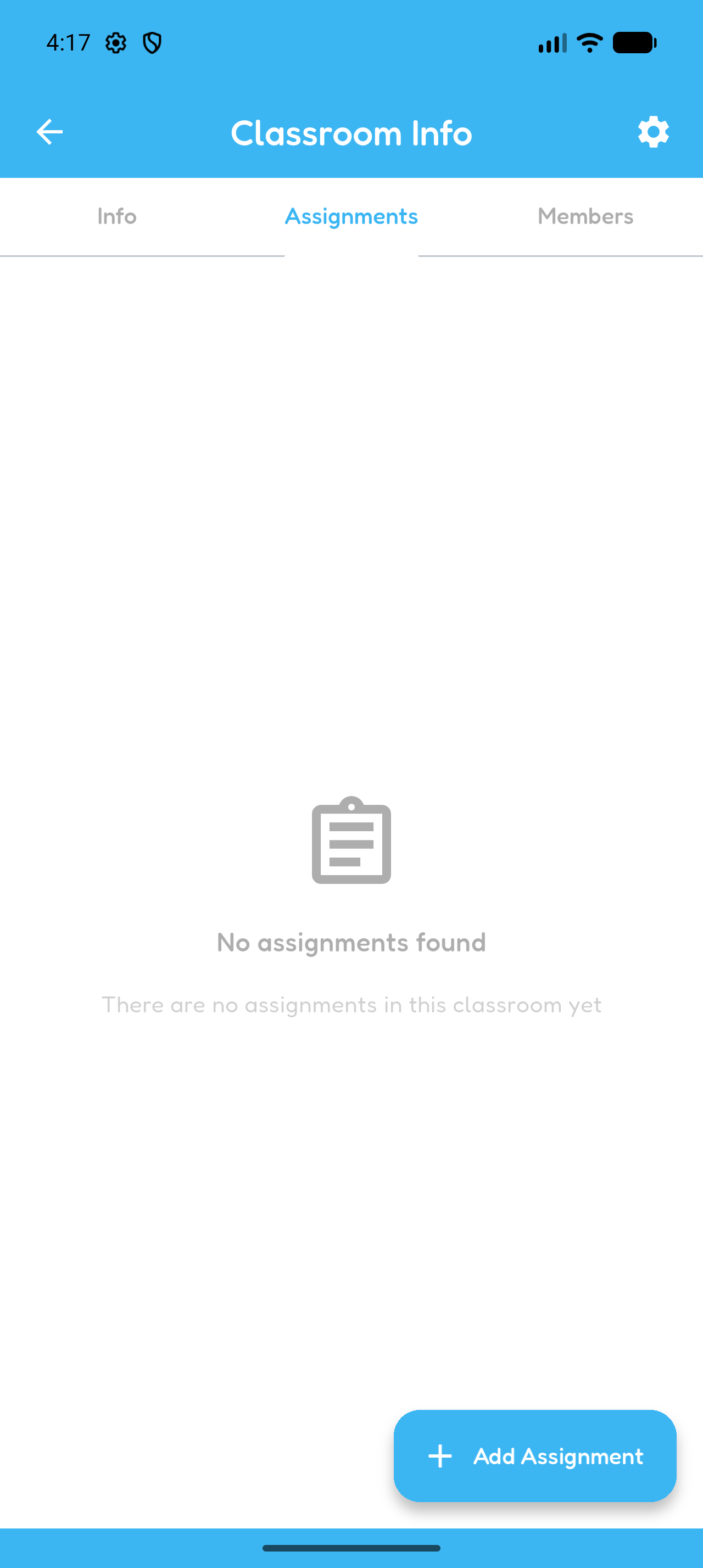
Add Quiz as an Assignment
- Open the classroom.
- Select Add Assignment.
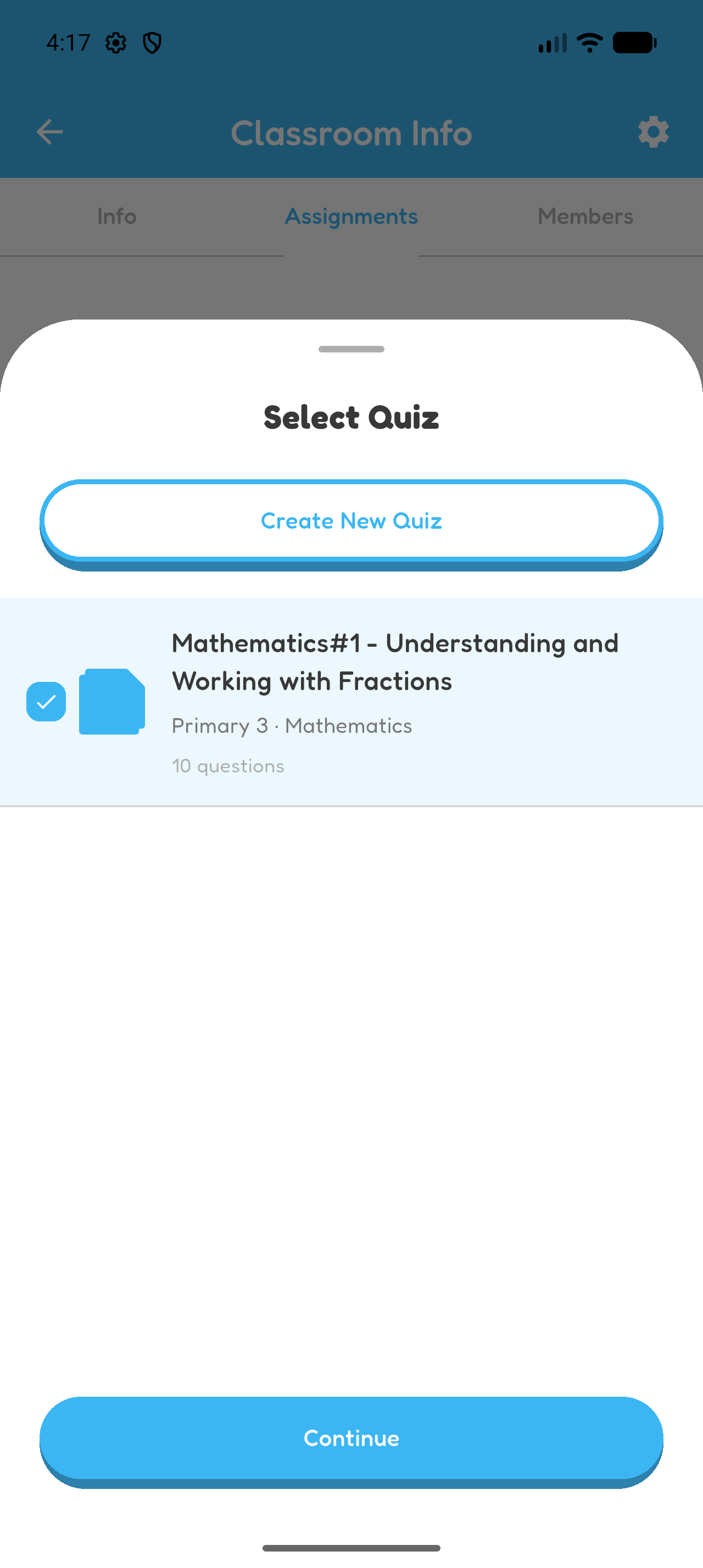
- Choose the quiz.
- Select Continue.
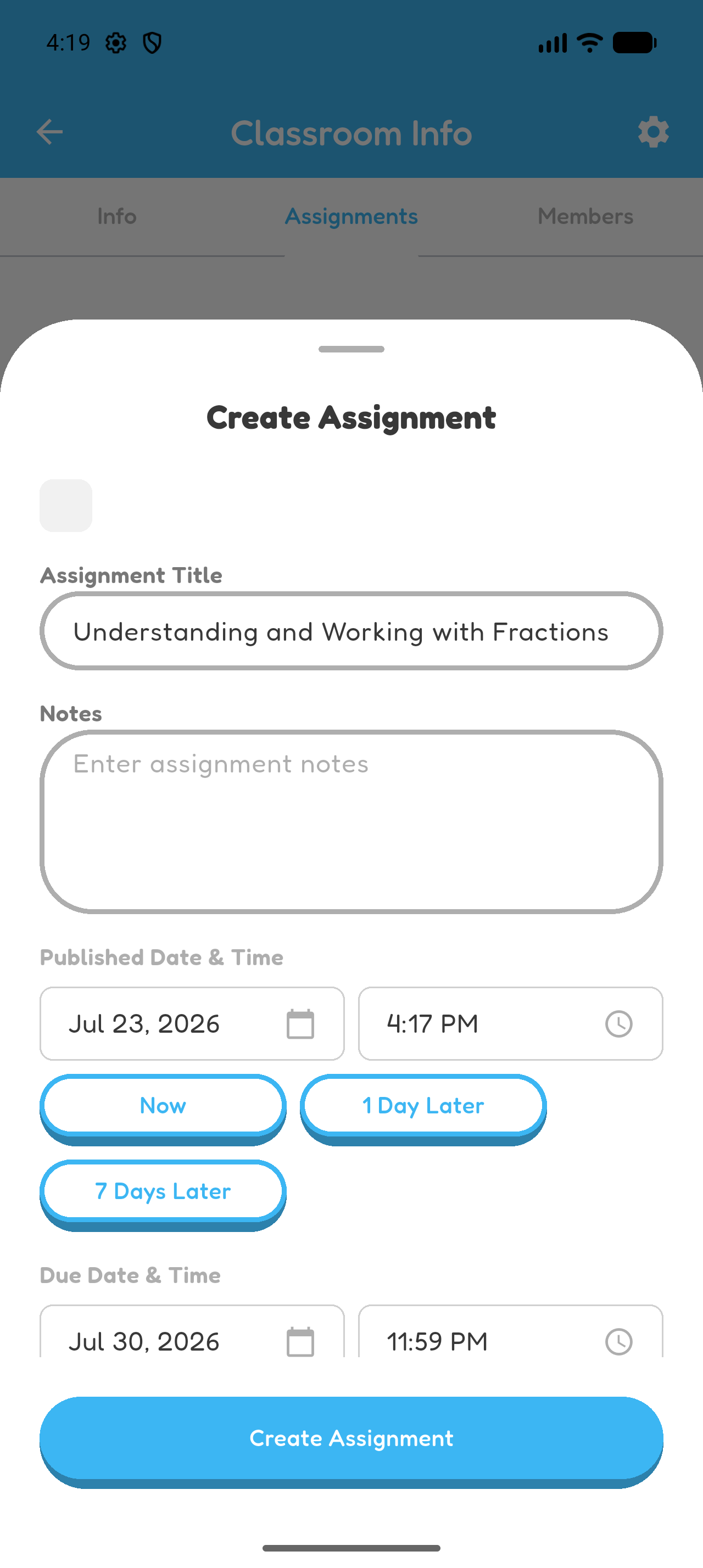
- Check the assignment title and add Notes if needed.
Set Publication and Due Times
- Set Published Date & Time.
- Set Due Date & Time later than the publication time.
Create Assignment
- Check the classroom, quiz, notes, and dates.
- Select Create Assignment.
The assignment appears in the classroom immediately for instructors. Students see it in the classroom and their feed when its publication time arrives.
At publication time, Hoppy queues a push notification for every active classroom learner, sends an assignment email to each active learner with an email address, and notifies linked parents. Push delivery still requires a registered device and its notification permission.
Wait until at least one student completes it before continuing to Chapter 5.
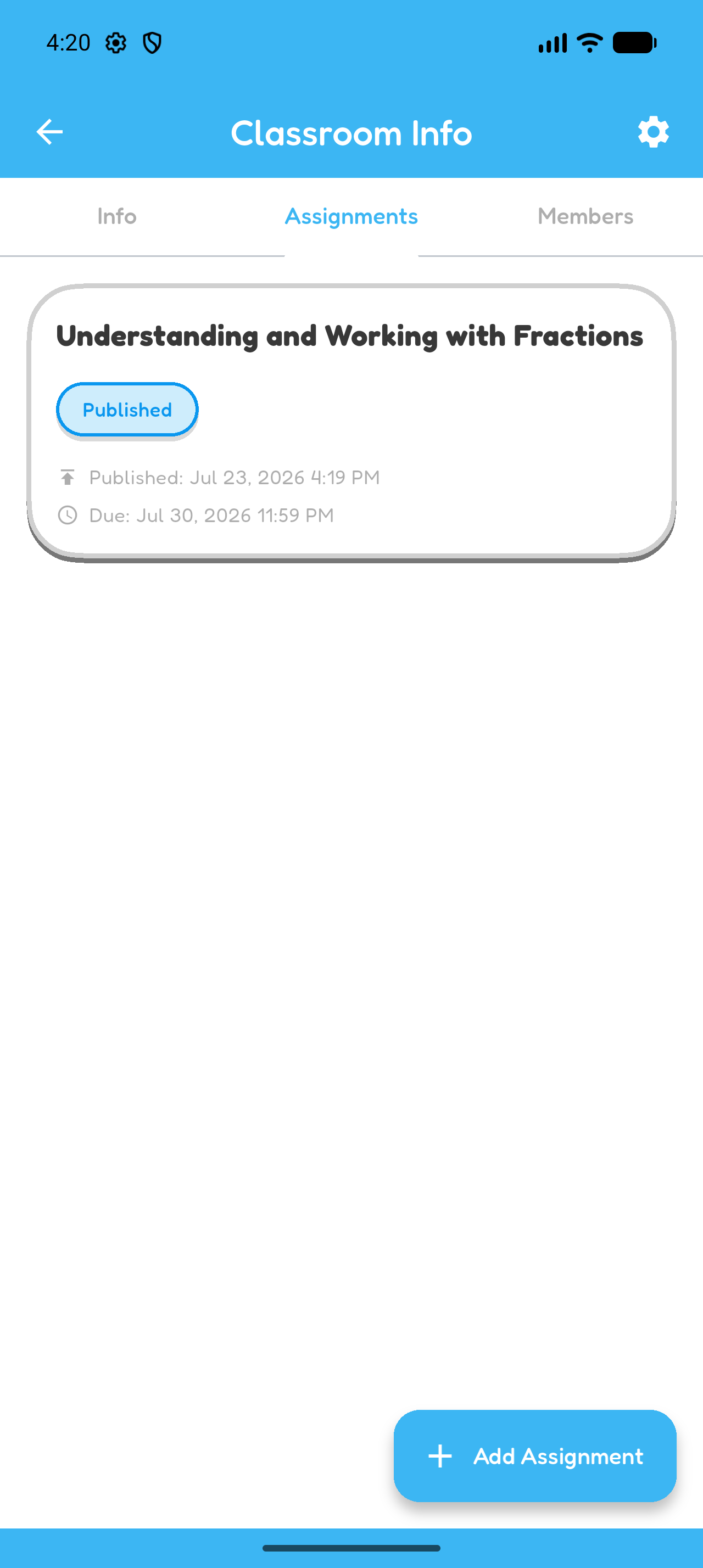
Your classroom assignment is created and ready for its publication time.