
Turn Your Idea or Material into a Quiz with Create
Can’t find what you need in Explore? Use Create to turn your lesson idea or reference materials into a quiz tailored to your class.
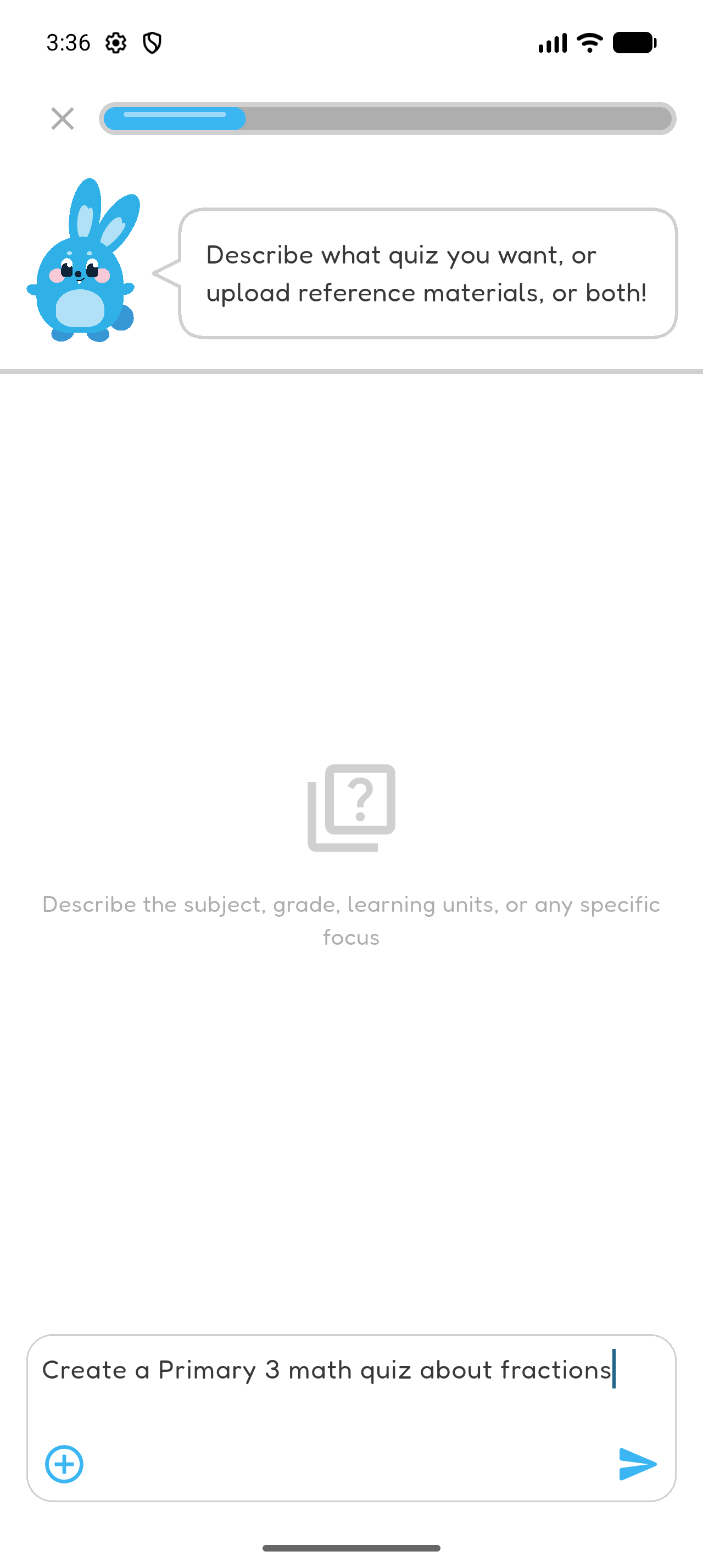
Enter Quiz Description
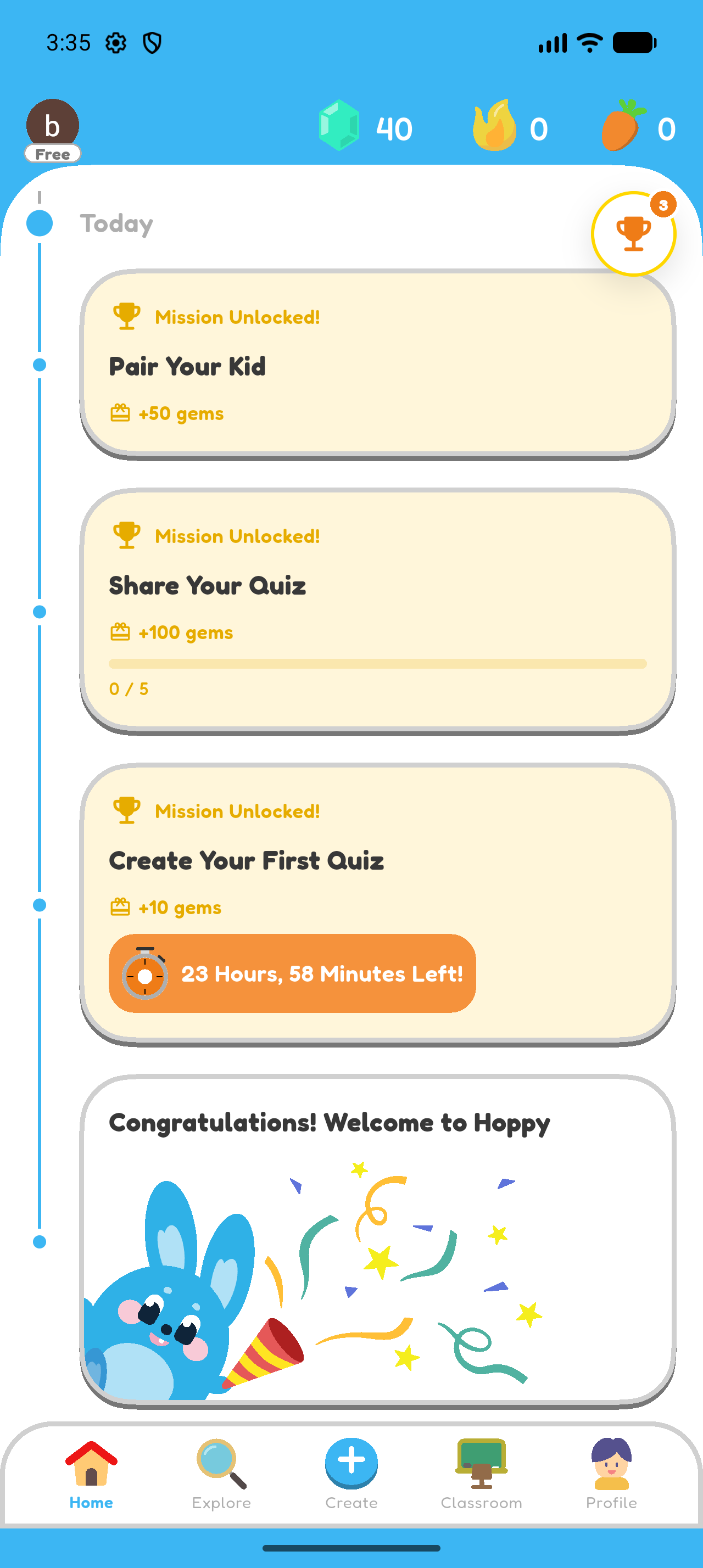
- Open Create.
- Enter a one-time description of the quiz you want. You can include the subject, grade level, learning units, or a specific focus.
- Select the arrow to continue.
Add Reference Materials — Optional
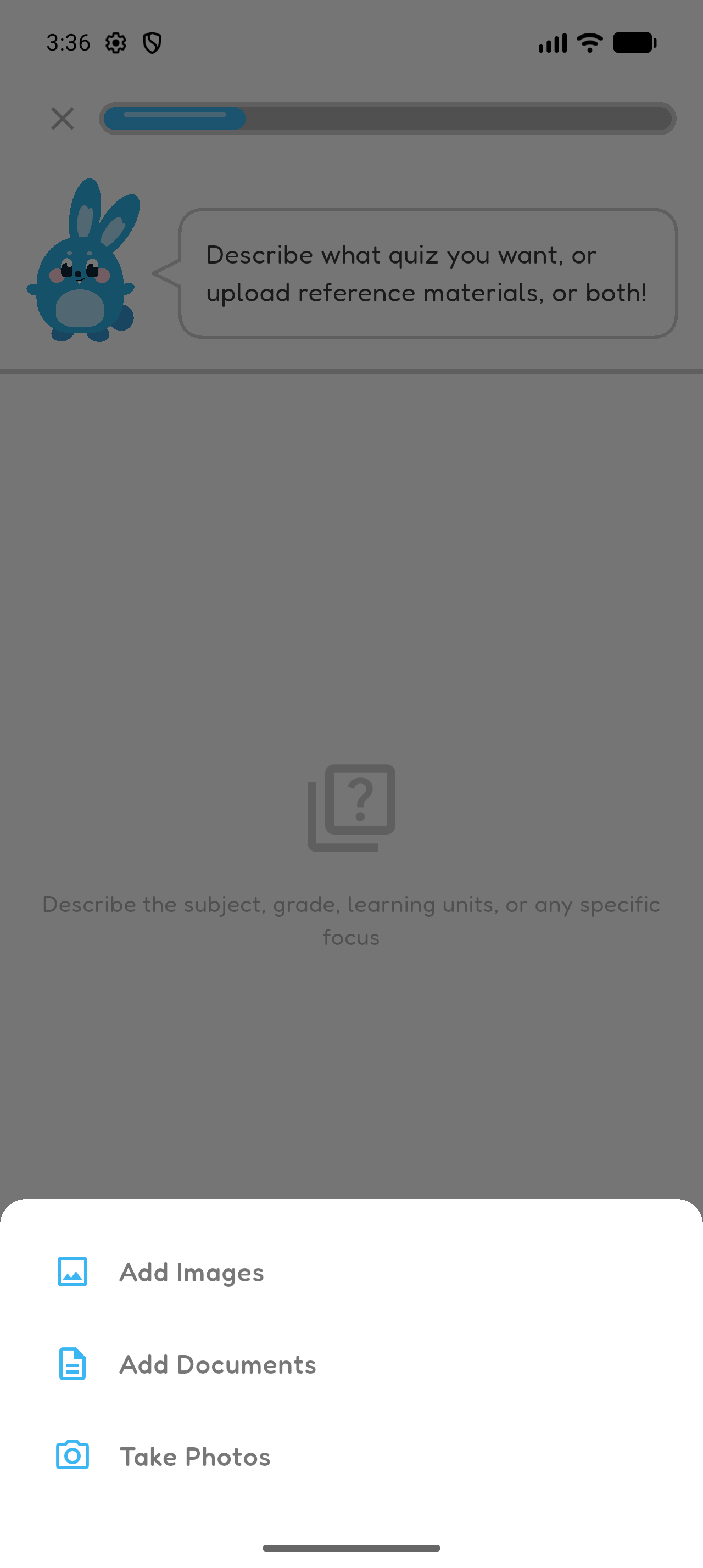
- Select the plus (+) button.
- Choose Add Images, Add Documents, or Take Photos.
- Add the reference materials you want Hoppy to use.
- Select the arrow to continue.
You can use a quiz description, reference materials, or both.
Confirm Quiz Context
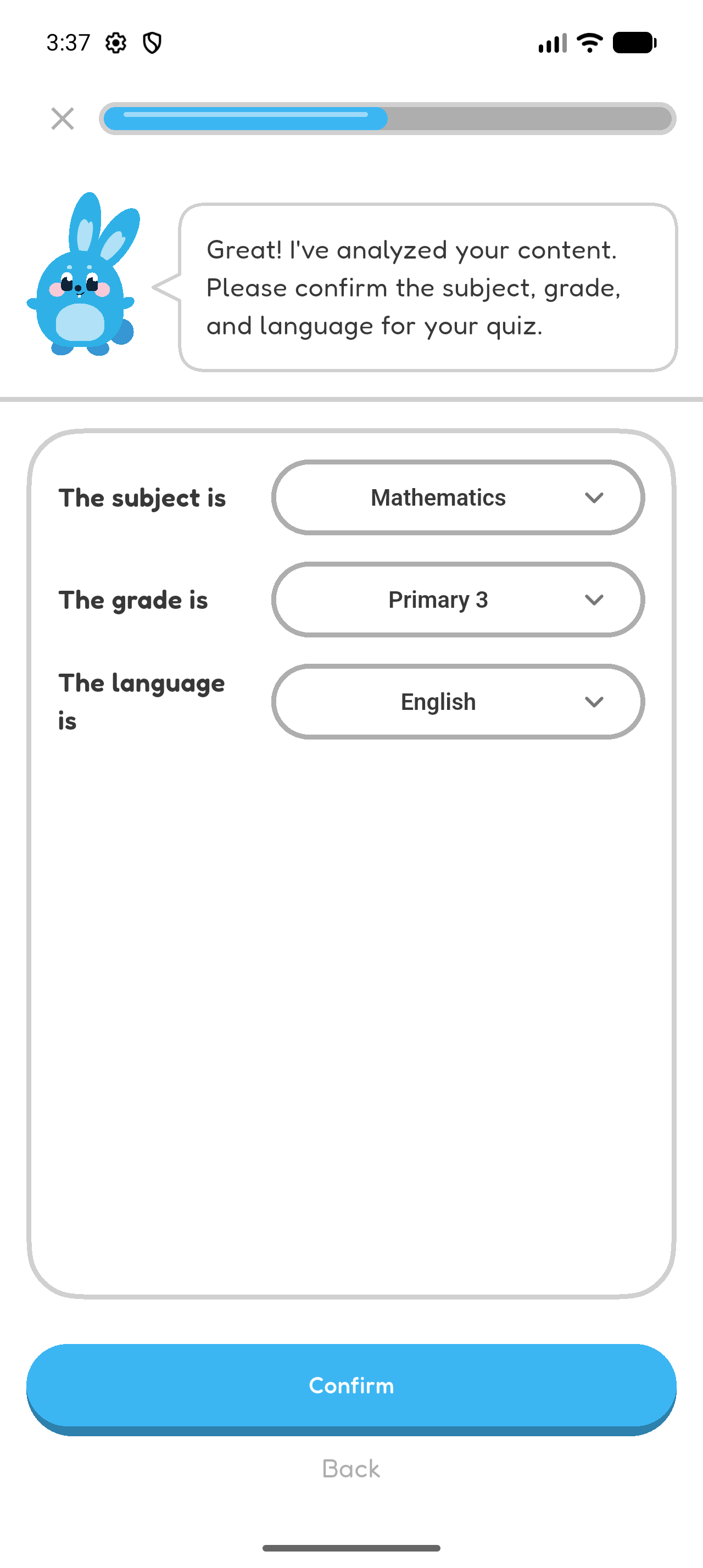
- Check the detected subject, grade level, and language.
- Correct any selection that does not match the quiz you want.
- Select Confirm.
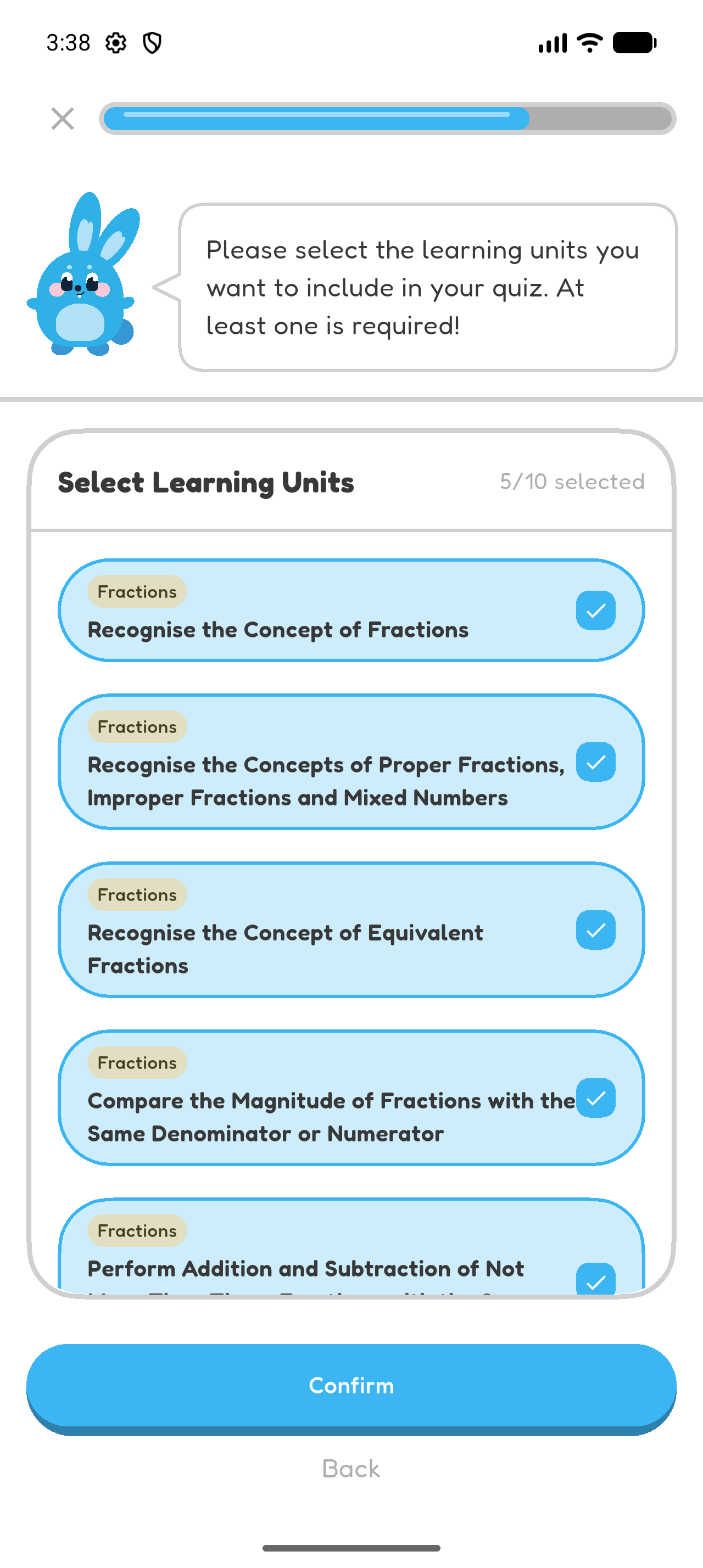
Select Learning Units
- Select at least one learning unit.
- Select Confirm.
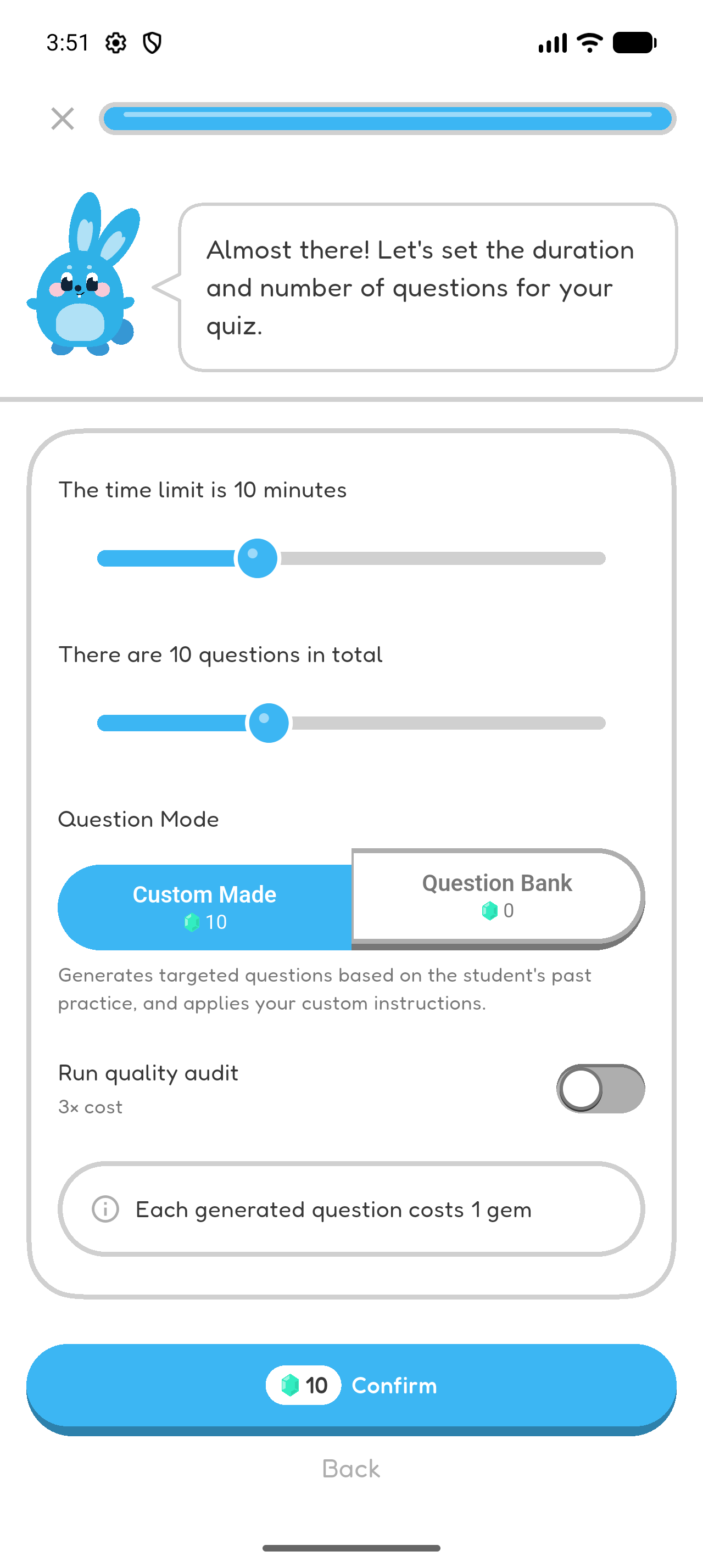
Choose Quiz Settings
- Set the expected duration.
- Choose the number of questions.
- Select Custom Made.
- Press Confirm to spend the displayed gems and start generating the quiz.
Review Generated Quiz
- Review the quiz title, grade level, subject, question count, and duration.
- Review the description and related learning units.
Chapter 3 complete
Great work! You created and reviewed a quiz with Create.