Hoppy Teacher Guide

Chapter 5 of 11

Check Student Completion and Results

See who has completed an assignment, review performance and individual attempts, and identify what needs follow-up.

← Topic Outline
Chapter 5

Check Student Completion and Results

See who has completed an assignment, review performance and individual attempts, and identify what needs follow-up.

View Results

  1. Open the classroom.
  2. Open Assignments.
  3. Select the assignment.
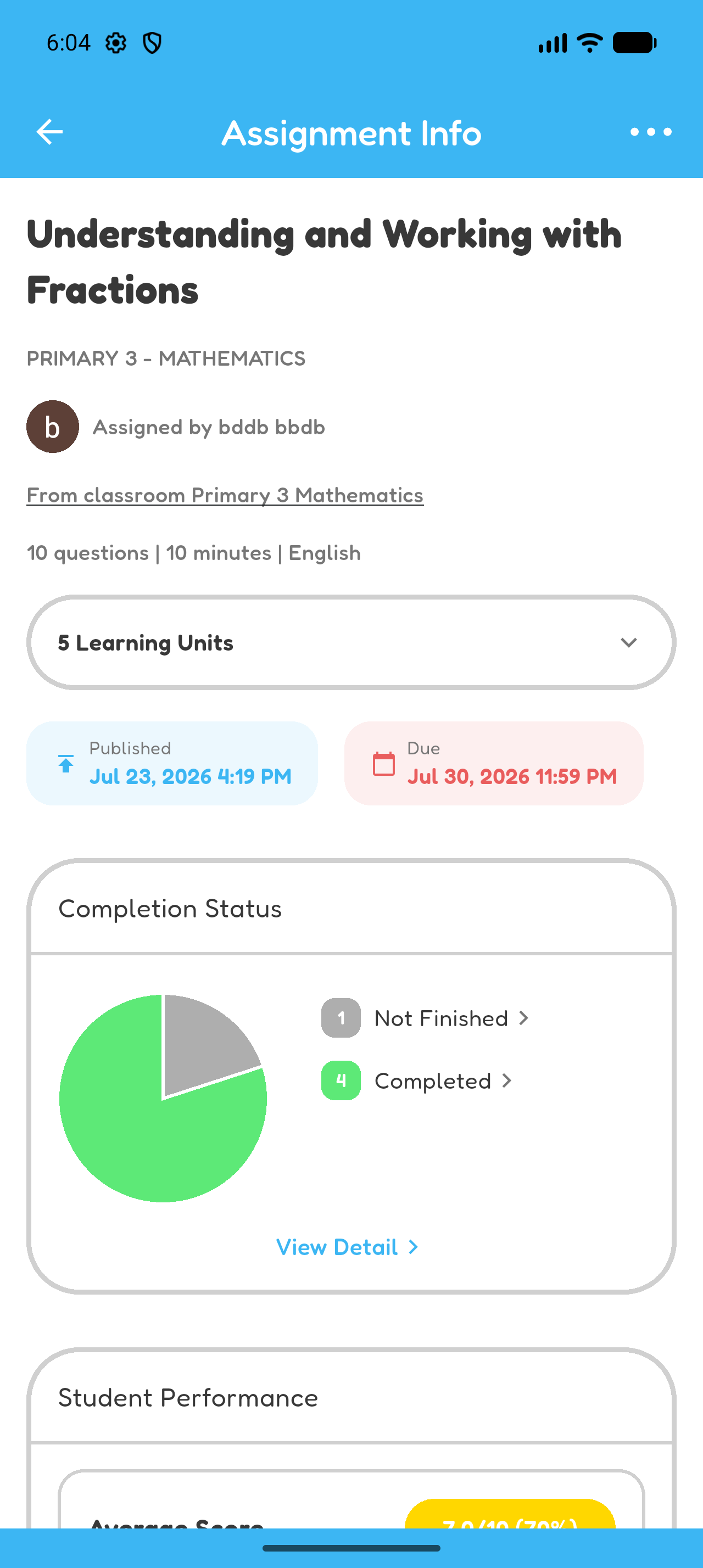
Assignment Info showing four completed students, one unfinished student, and the beginning of Student Performance.
After students submit the assignment, Completion Status and Student Performance appear on Assignment Info.

Review Class Performance

  • Average Score includes assignments completed on time.
  • Average Score (Including Late) includes all completed assignments.
  • Each learning-unit result shows the number of questions and the class average percentage.
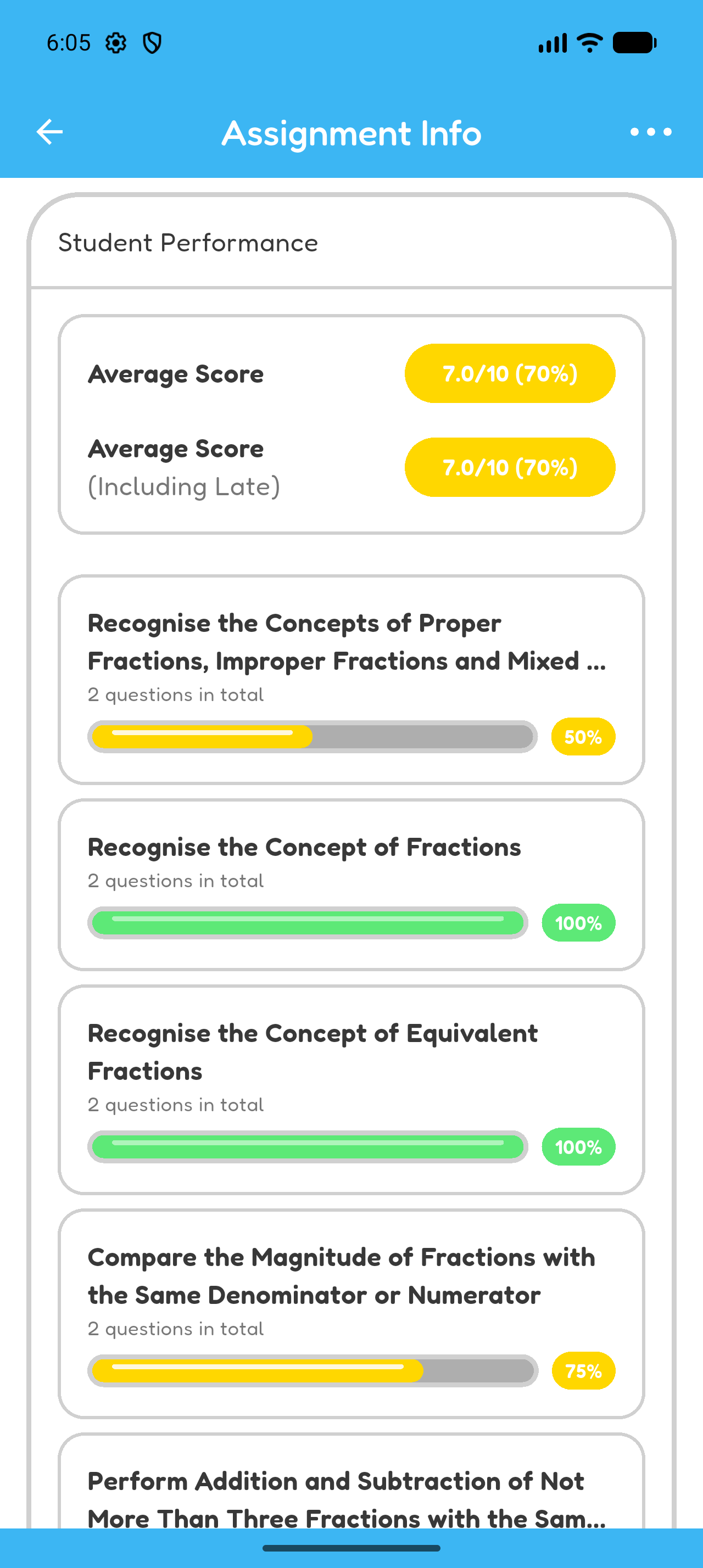
Student Performance showing average scores and class results for each learning unit.
Use the overall averages and learning-unit percentages to identify strengths and areas for follow-up practice.

Review Student Attempts

  1. Under Completion Status, select View Detail to open All Learners.
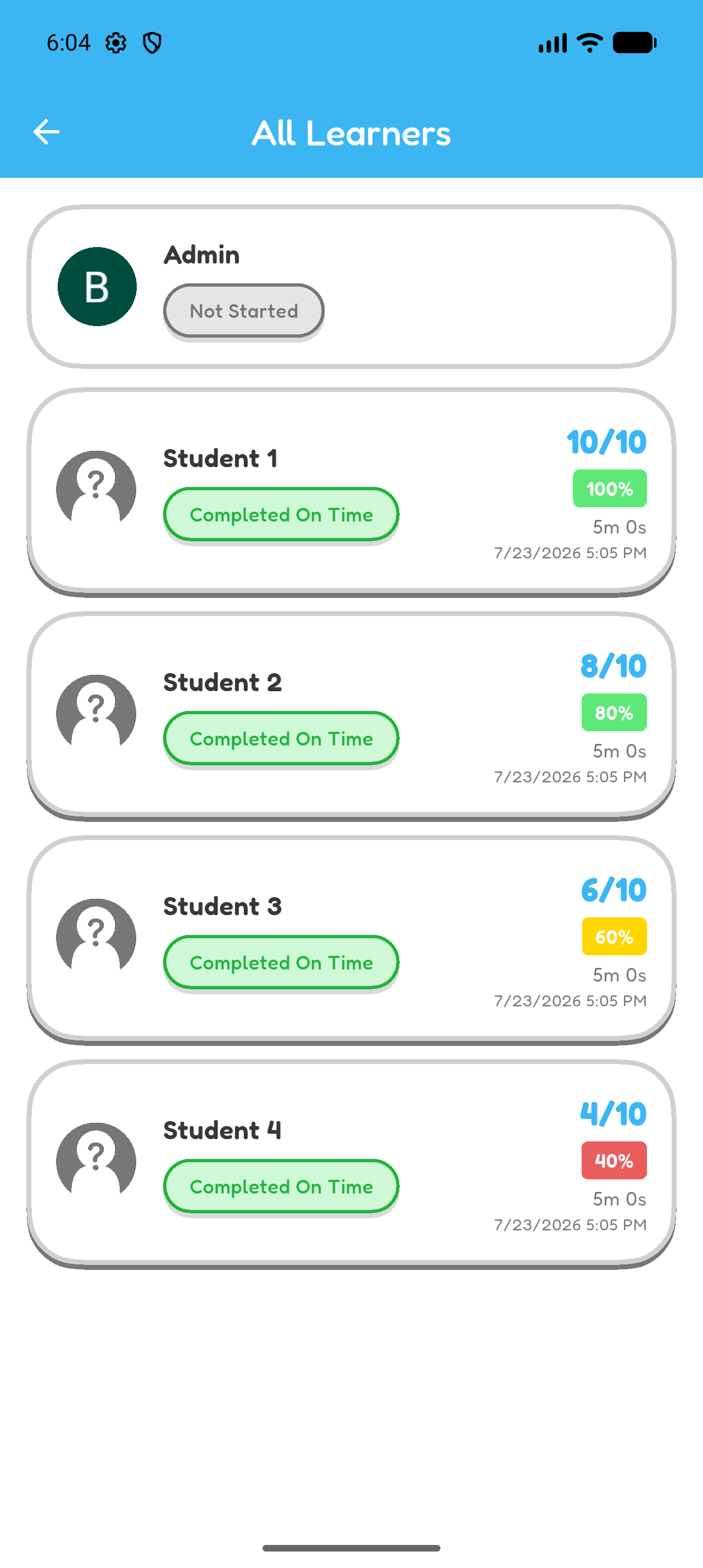
  2. Check each student’s status, score, time spent, and completion time.
  3. Select a student marked Completed or Completed Late to open the attempt.
  4. Use the numbered controls to review each selected answer, correct answer, and explanation.
  5. Close the attempt to return to All Learners, or return again to the assignment.
Assignment Info showing Completion Status and the View Detail button.
Select View Detail under Completion Status to open All Learners and view each student’s information.
All Learners screen showing completed students who can be selected to review their attempts.
In All Learners, select a student marked Completed or Completed Late.
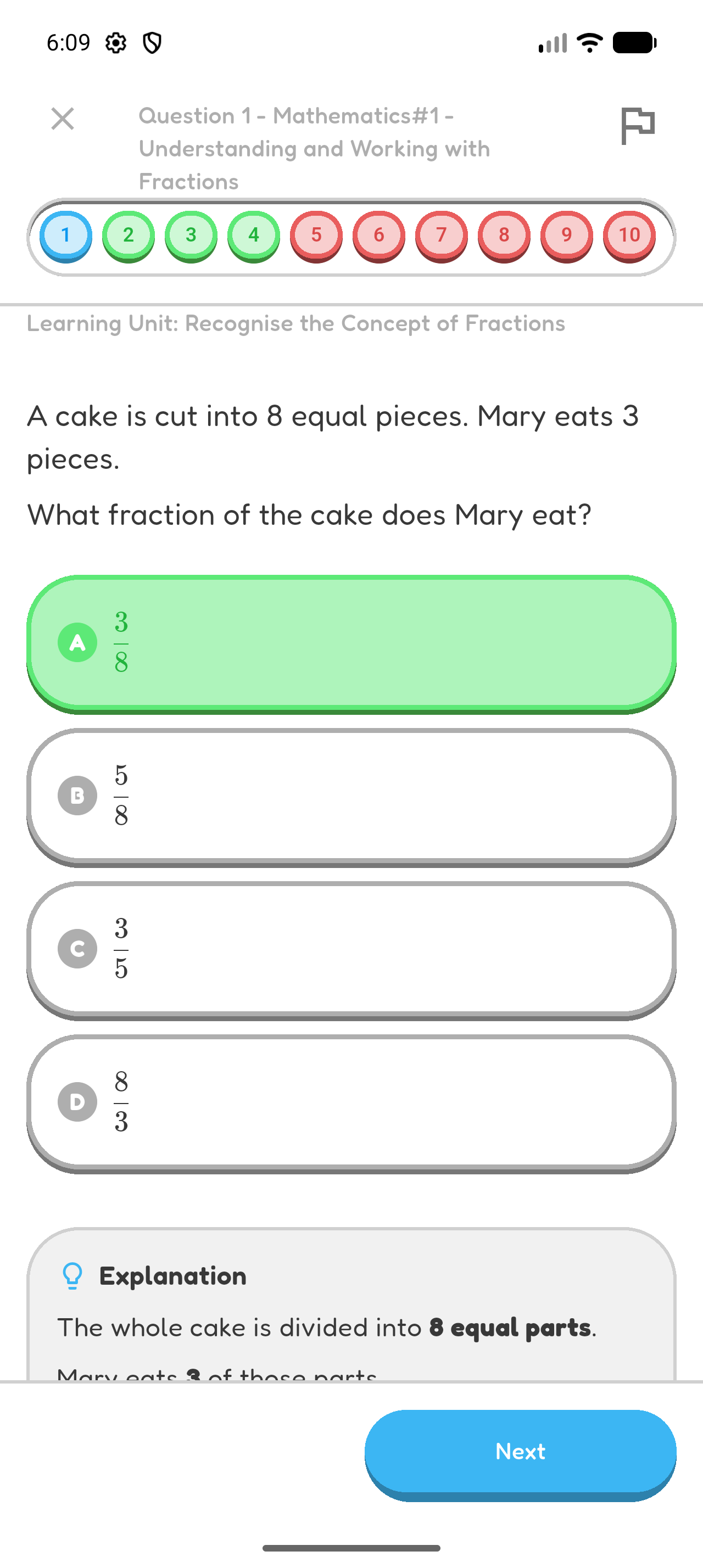
A completed student attempt showing correct questions in green, incorrect questions in red, the selected answer, and the explanation.
Green numbers mark correct answers and red numbers mark incorrect answers. Select a number to review that question.

View Assignment Leaderboard

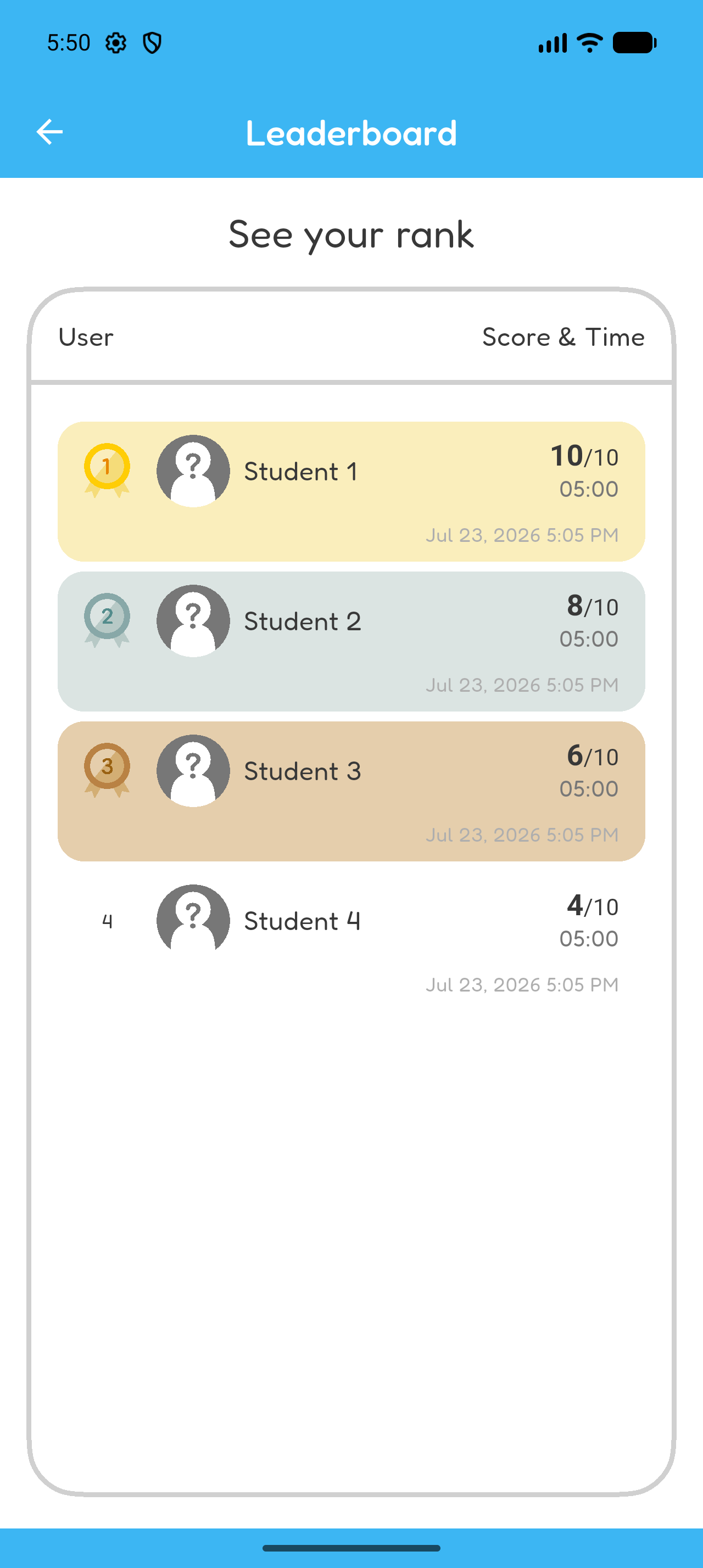
Open an assignment and select View Leaderboard. Completed attempts are ranked by score and then by earlier completion time. Each entry shows the score, time taken, completion time, and late status.
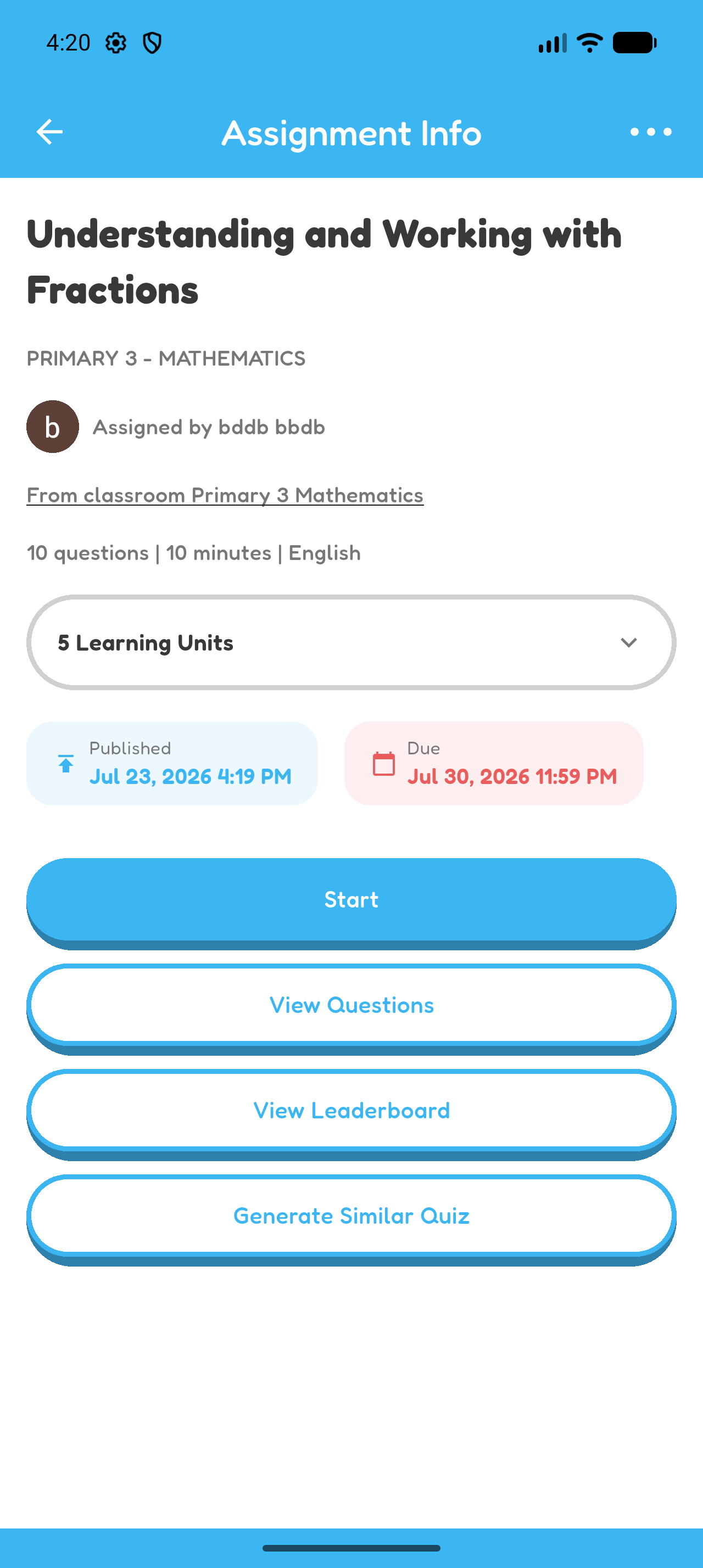
Assignment information screen with the View Leaderboard button.
Select View Leaderboard from the assignment.
Full Hoppy assignment leaderboard showing four students ranked by score and time.
The assignment leaderboard ranks completed attempts by score and then completion time.
Chapter 5 complete

Great work! You reviewed student completion, individual attempts, class performance, and the assignment leaderboard.