
Check Your Quiz Before Assigning It
Protect quiz quality by reviewing questions, answers, and explanations before use, then choosing a sharing or export method that suits your lesson.
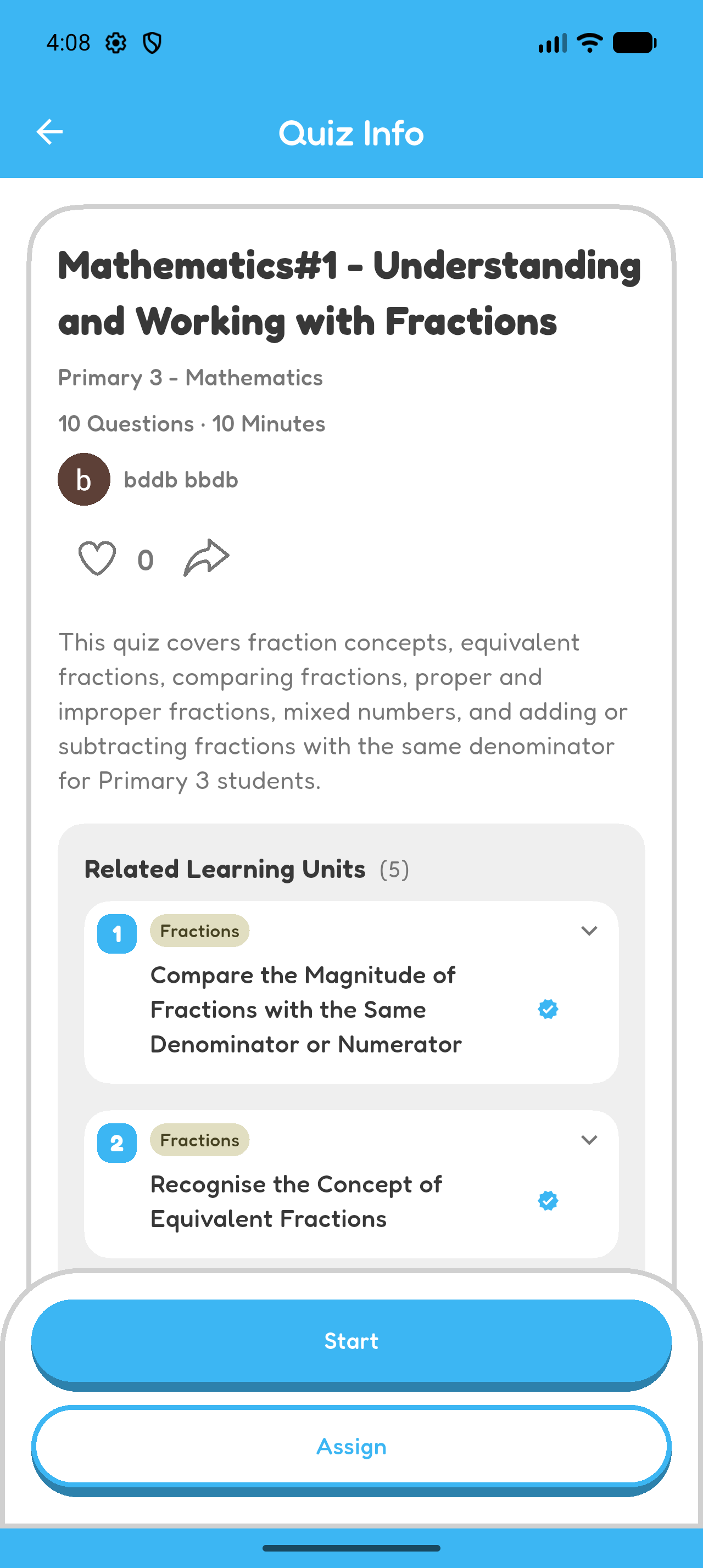
Preview Quiz
- Select Start.
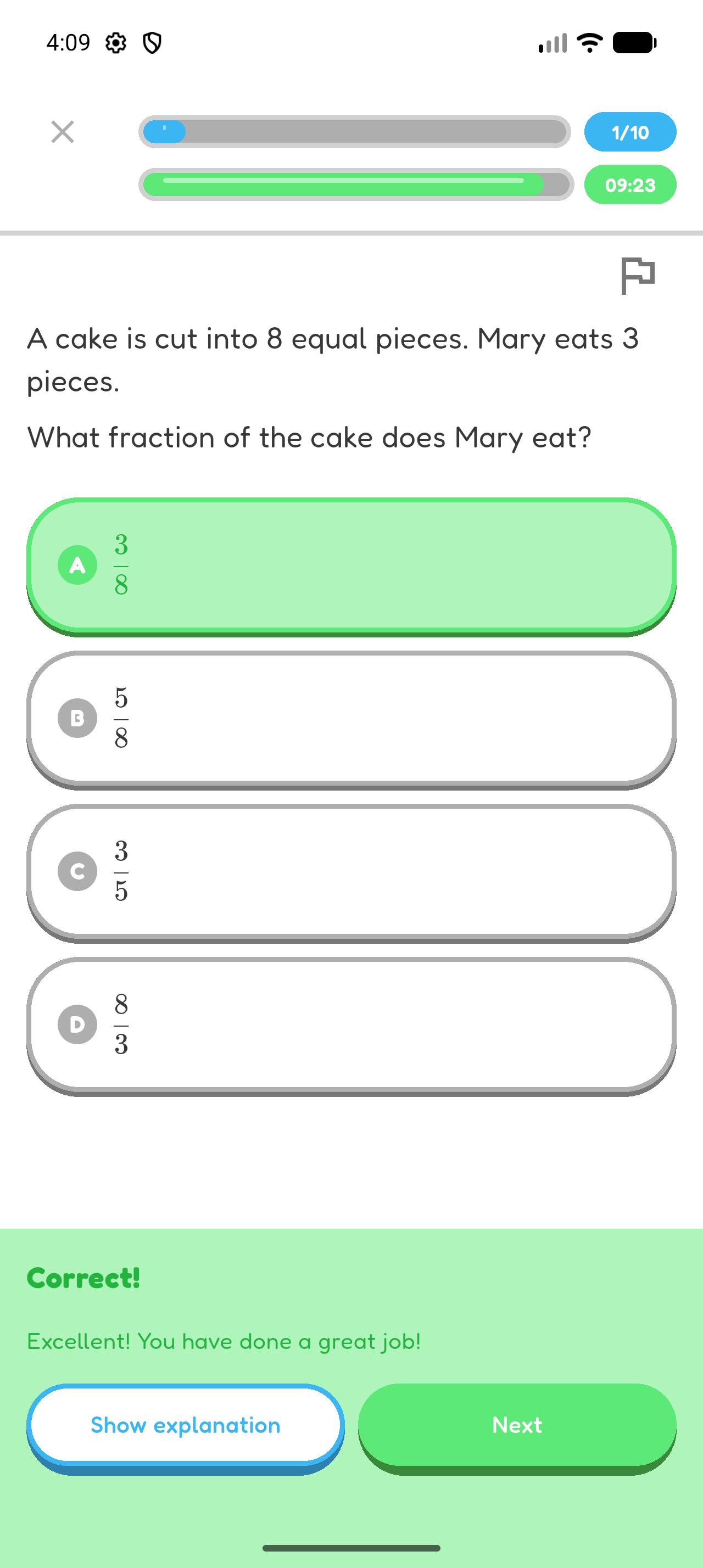
- Choose an answer and select Submit.
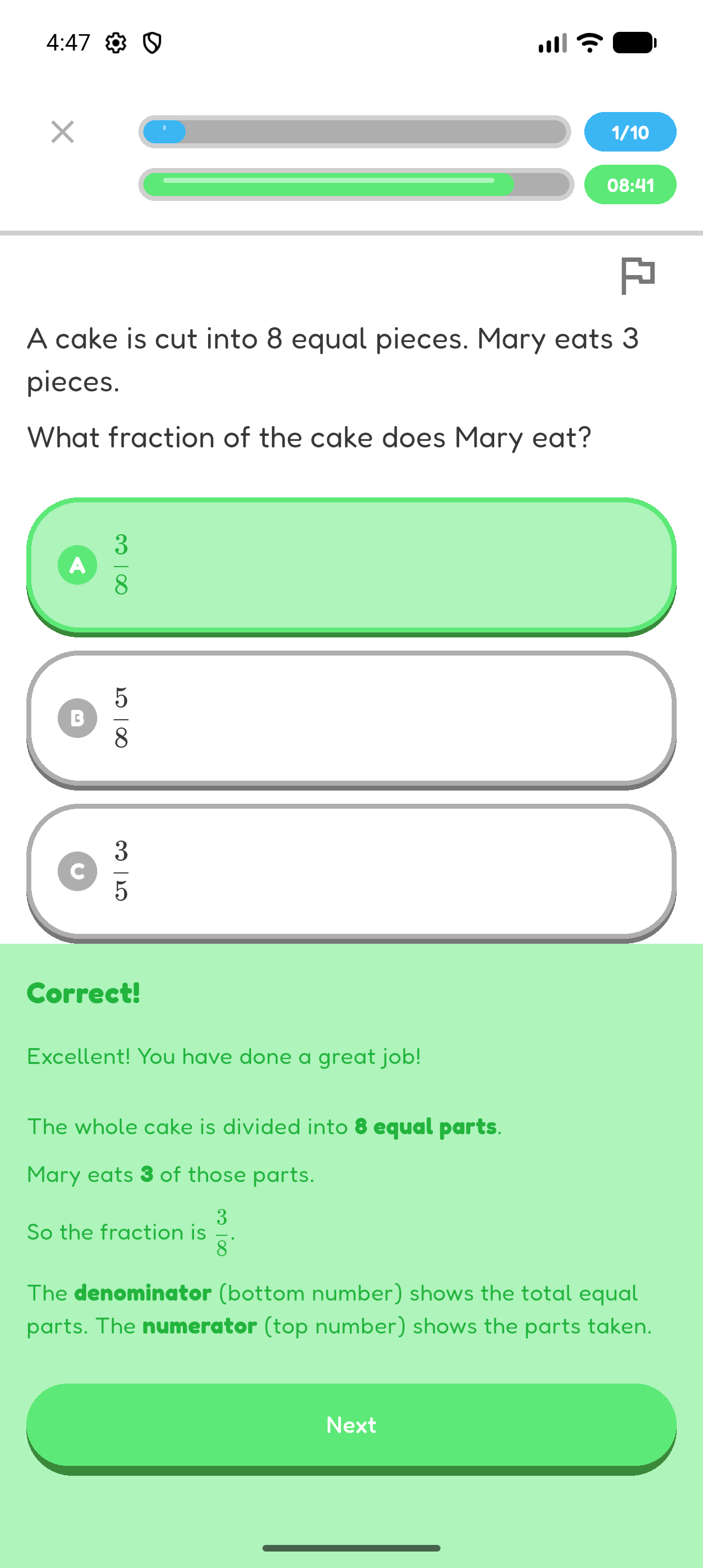
- View the feedback and select Show explanation.
- Select Next.
- On the last question, select Finish Quiz.
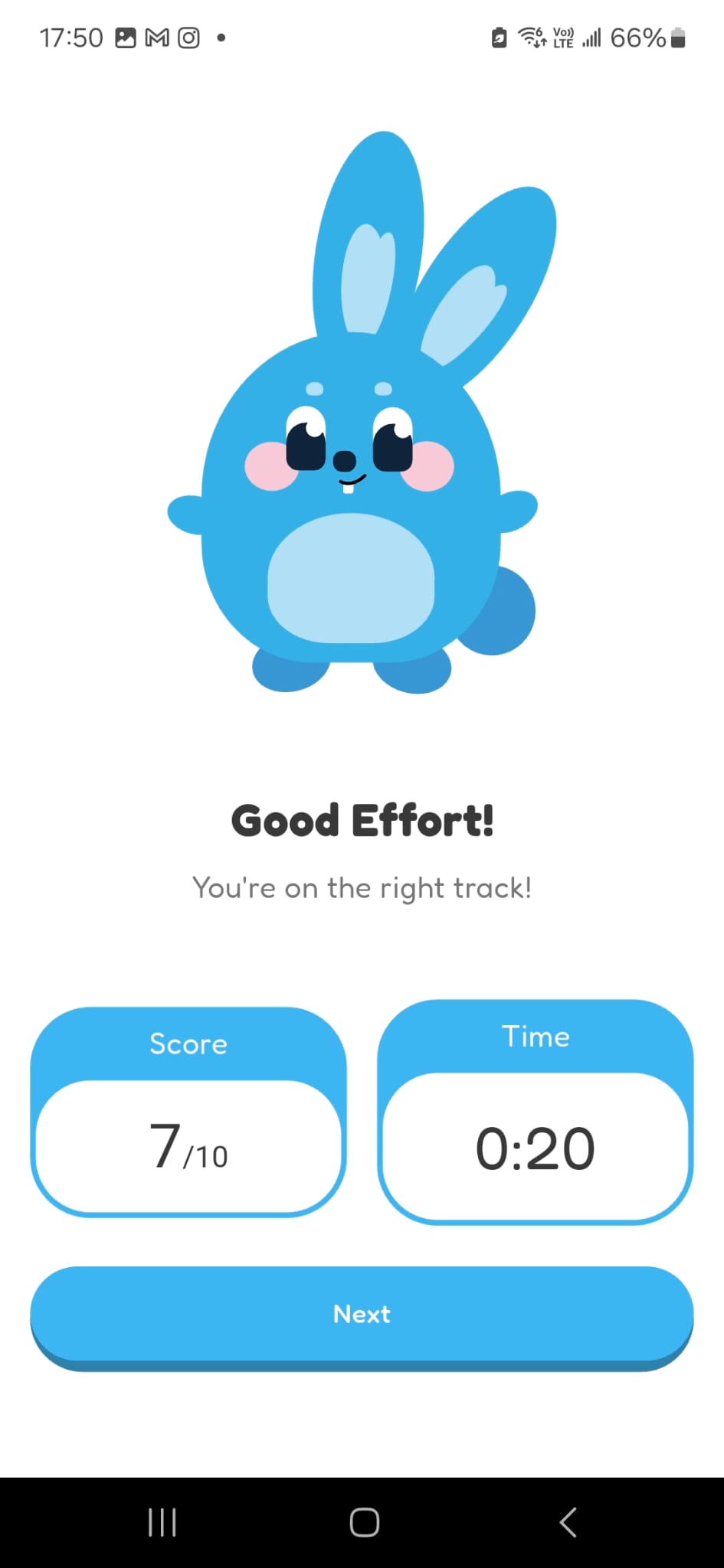
- Review your score and time taken, then select Next.
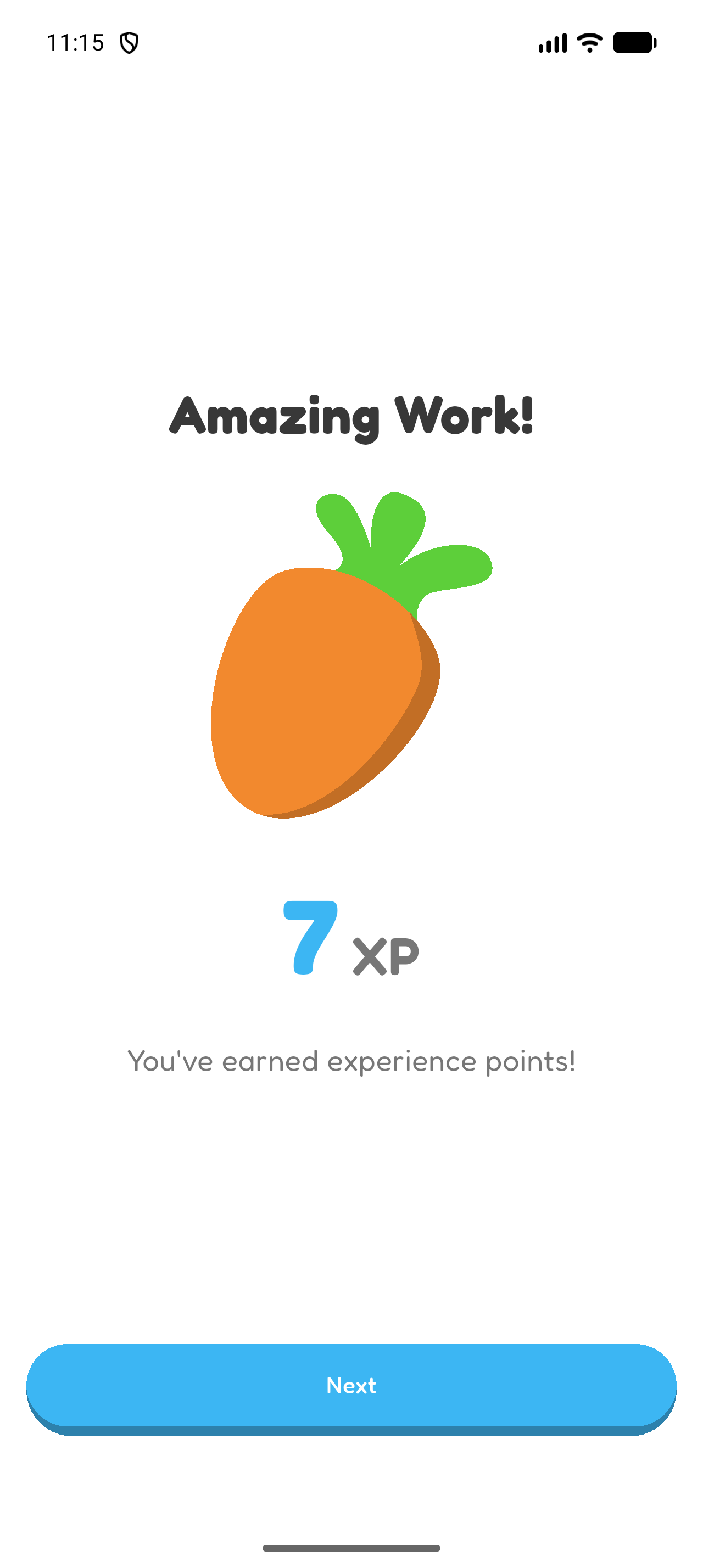
- Review the XP earned, then select Next to return to the quiz page.
View Questions, Answers, and Explanations
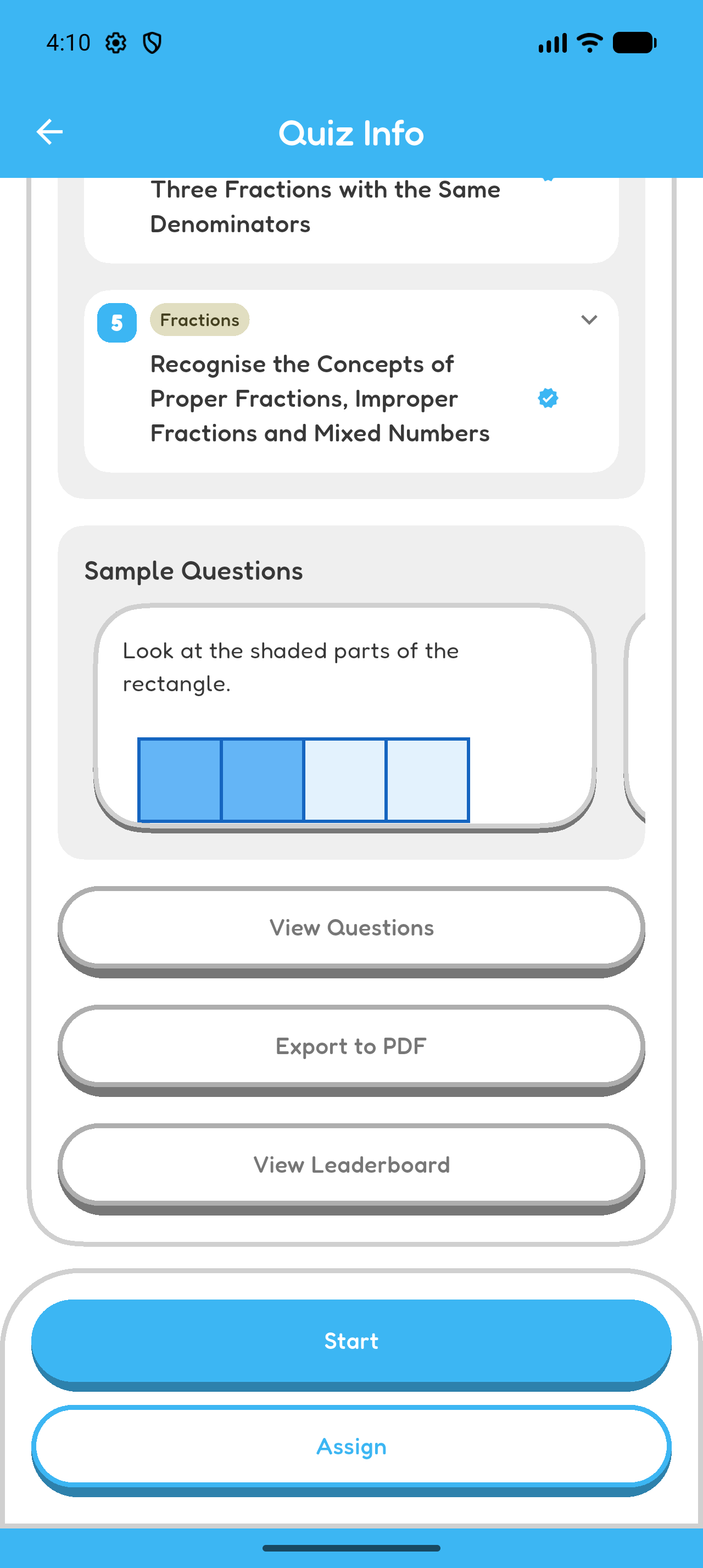
- Select View Questions on the quiz page.
- Use the arrows or numbered question markers to move through the quiz.
- Check each question, its answer choices, the correct answer, and the explanation.
- Select the close (X) control to return to the quiz page.
Report a Problem
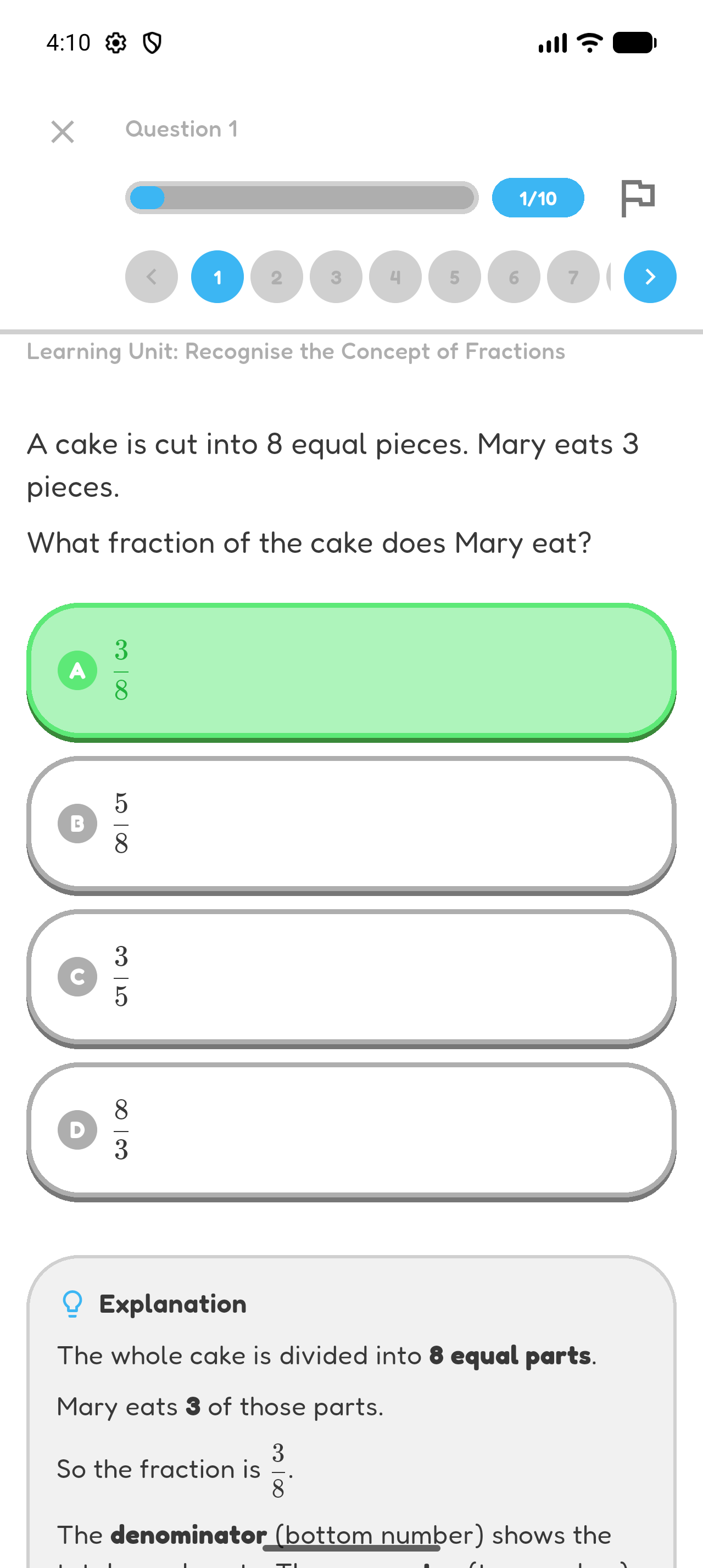
If you find a problem while viewing a question, select Report and choose the reason.
View Quiz Leaderboard
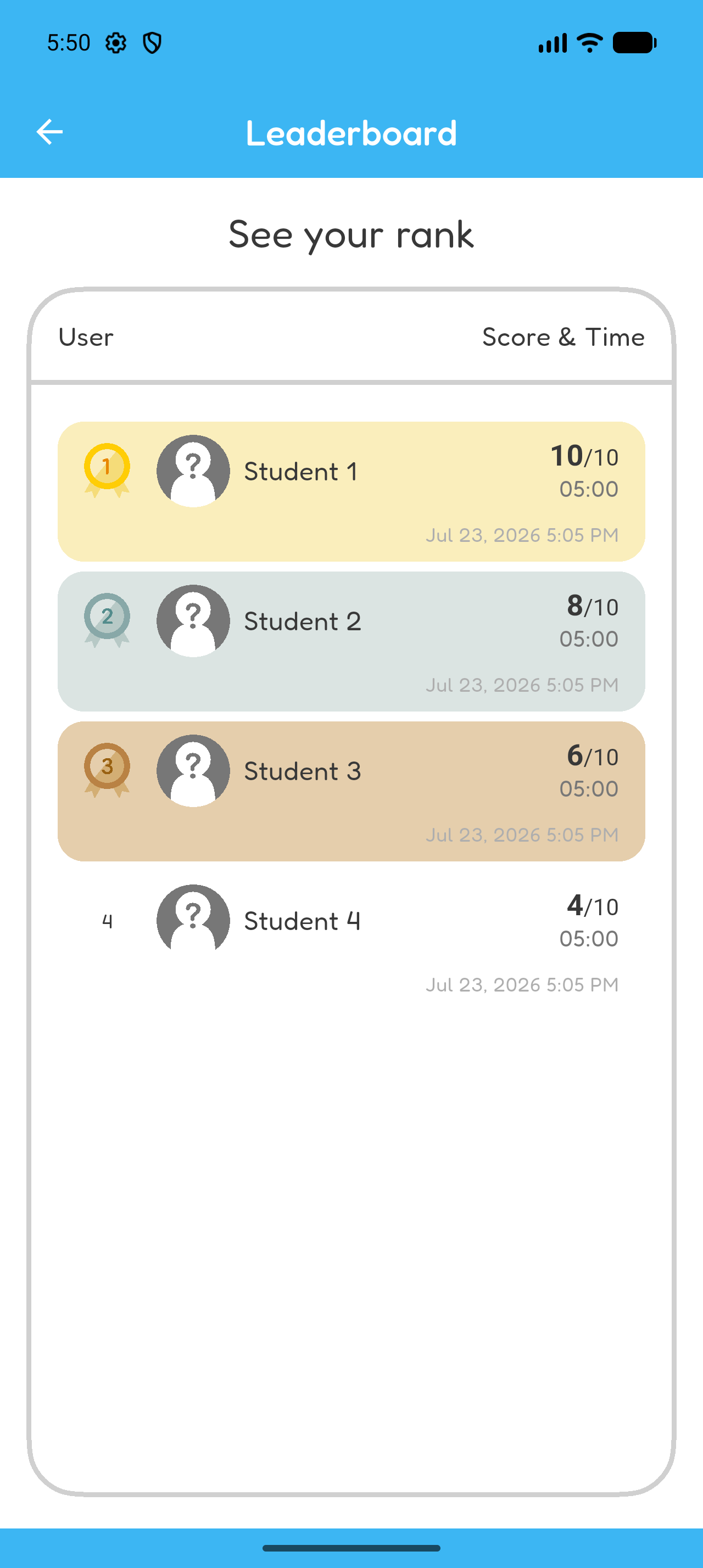
Select View Leaderboard to see the users who completed the quiz, ranked by their score and completion time.
Share Quiz
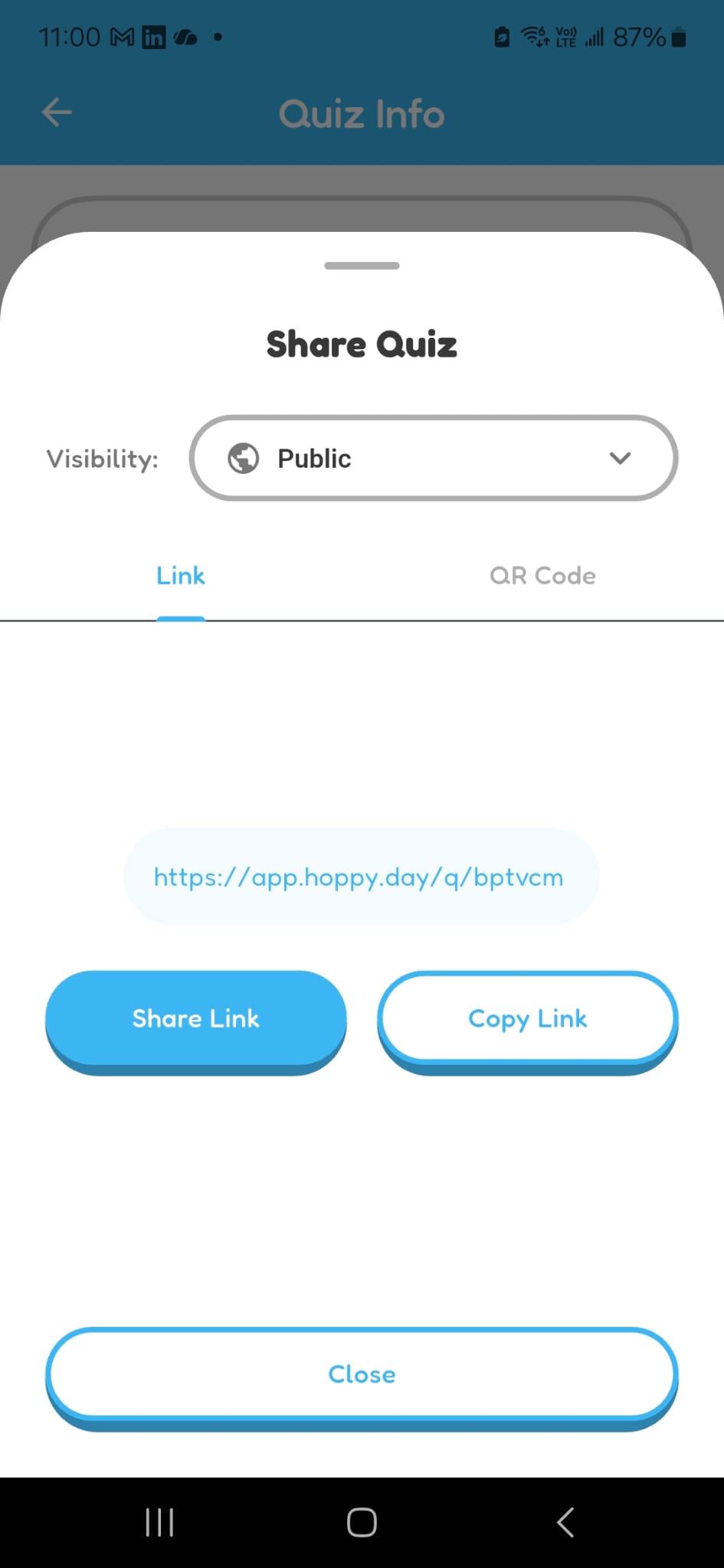
- Select Share Quiz.
- If you own the quiz, choose its visibility.
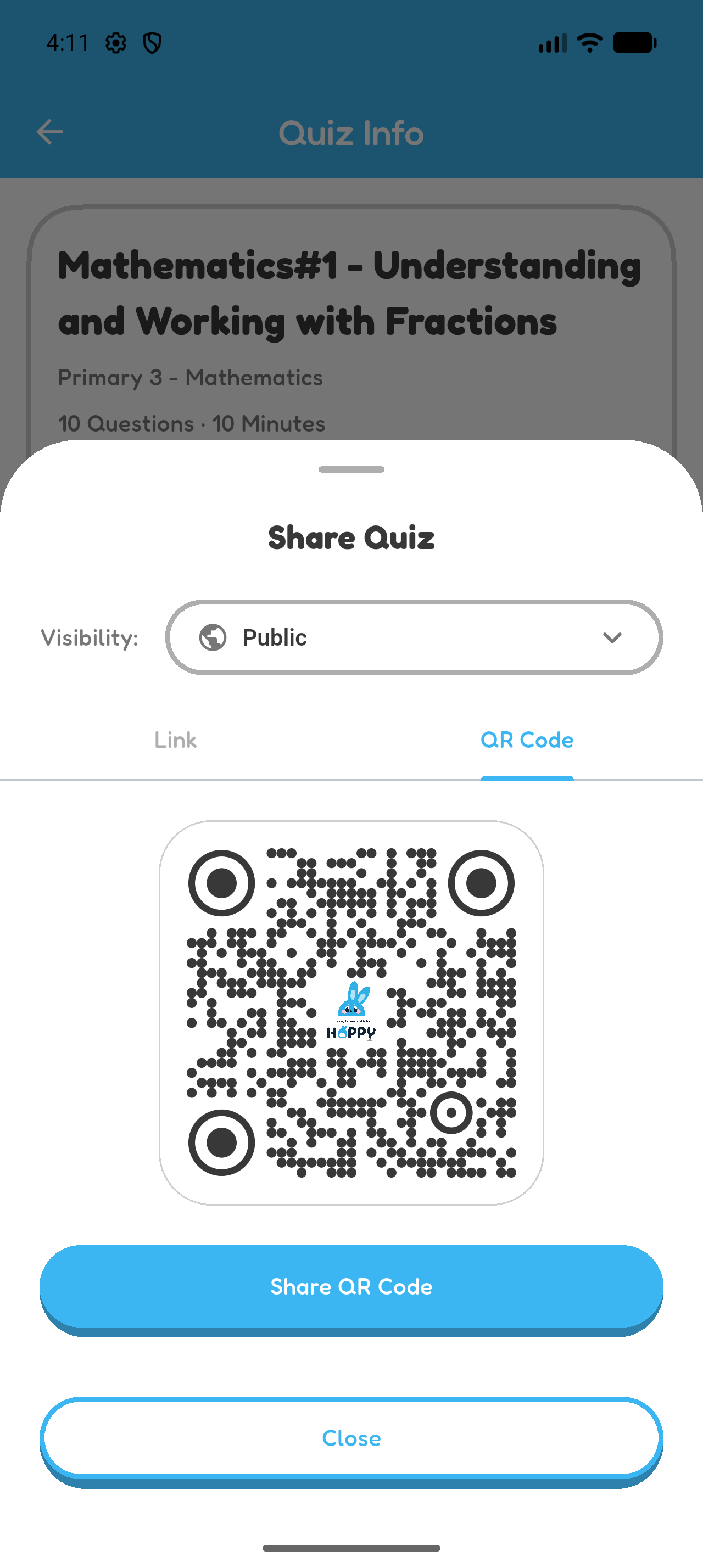
- Share or copy the quiz link, or show or share its QR code.
- Public makes the quiz discoverable and shareable.
- Unlisted allows access through its link without making it publicly discoverable.
- Private cannot be shared.
Export Quiz to PDF or Word
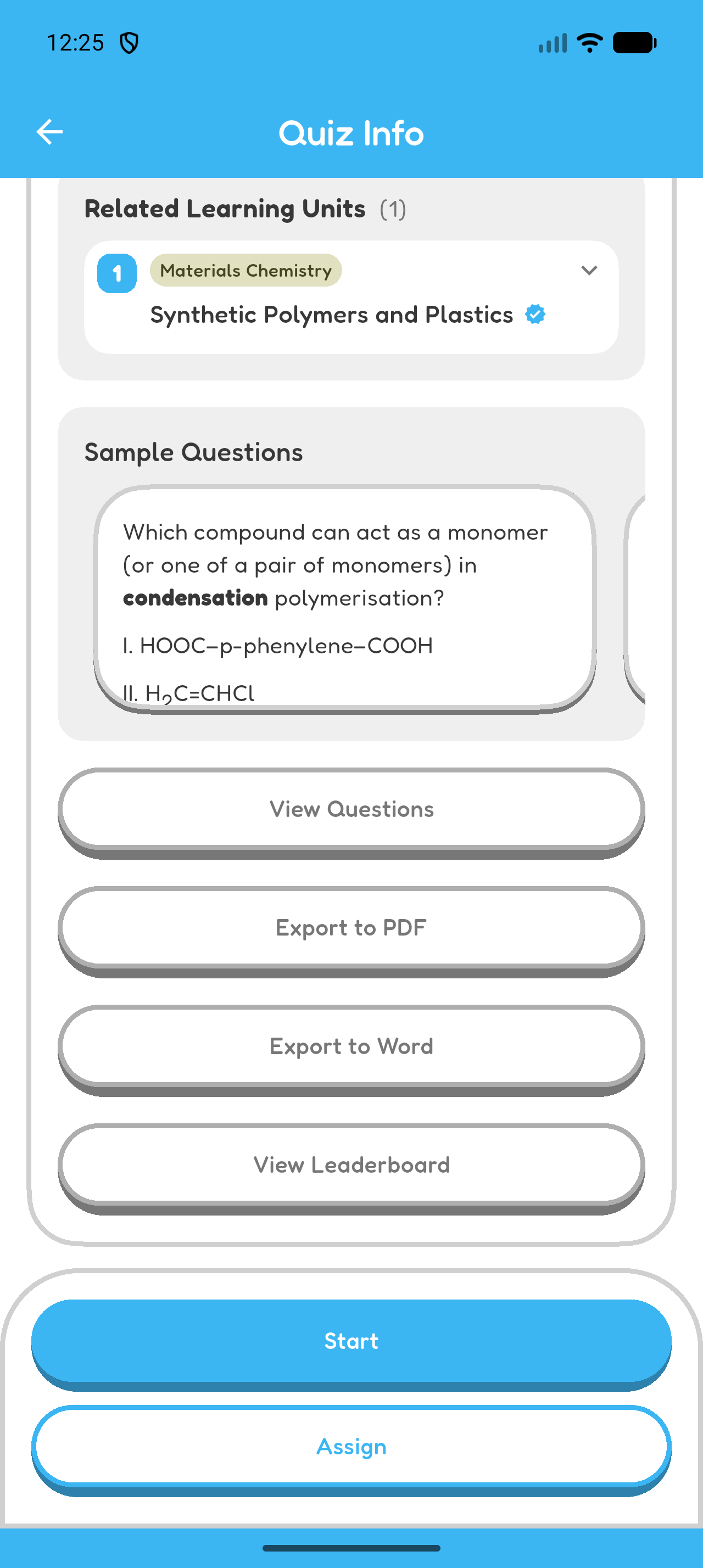
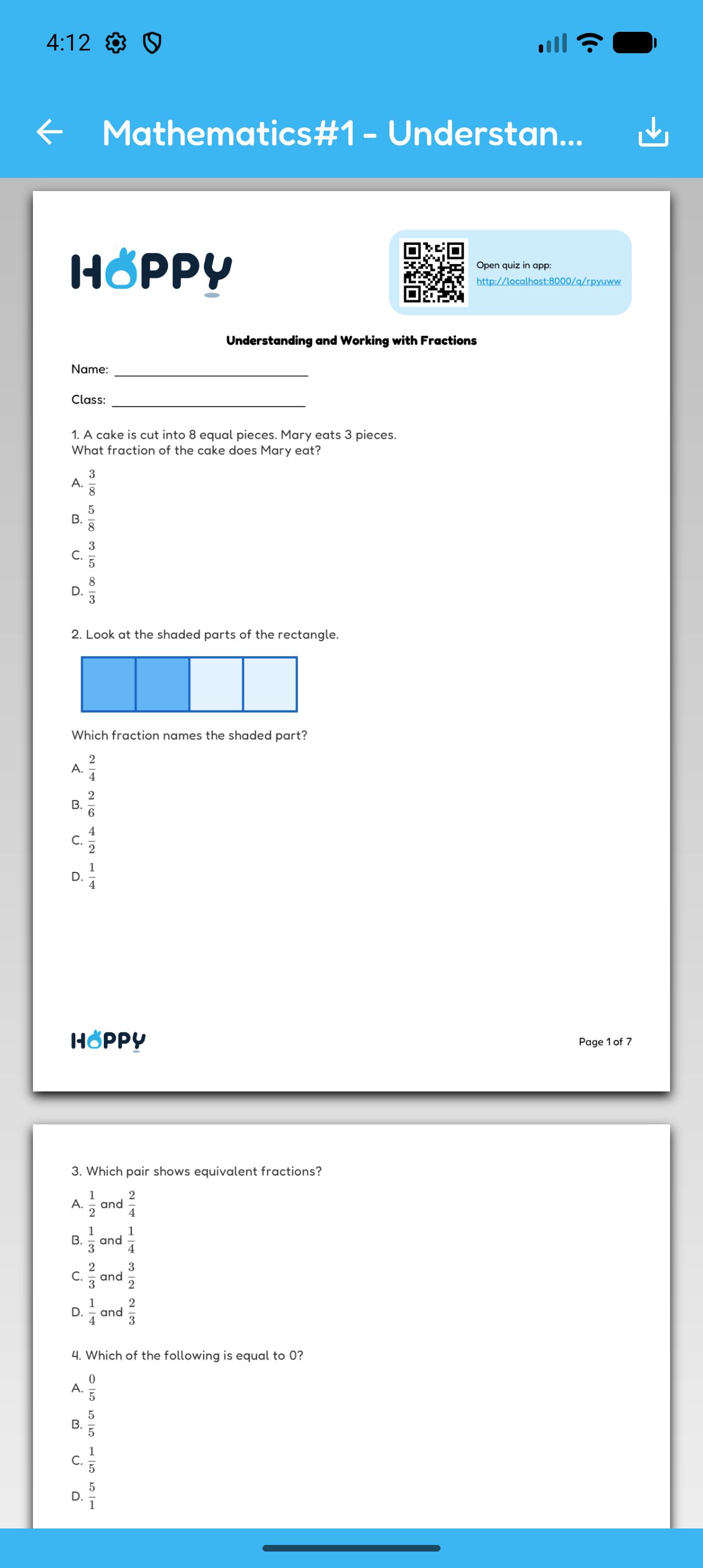
- For PDF, select Export to PDF on the quiz page, check the preview, and select Save PDF.
- For an editable DOCX file, select Export to Word. Hoppy downloads the Word file directly without opening a preview.
- Wait for Hoppy to confirm that the selected file was saved.
Both formats include the questions, answers, and explanations. If the quiz can be shared, the file may also include a share link and QR code. PDF opens an in-app preview before saving; Word downloads directly as an editable .docx file.
Chapter 2 complete
Your quiz is checked and ready to use.