Hoppy Teacher Guide

Chapter 1 of 11

Choose a Topic and Create a Quiz with Explore

Save planning time by creating curriculum-aligned quizzes from a selected grade, subject, and learning units.

← Topic Outline
Chapter 1

Choose a Topic and Create a Quiz with Explore

Save planning time by creating curriculum-aligned quizzes from a selected grade, subject, and learning units.

Choose Grade Level

  1. Open Explore.
  2. Choose the grade level.
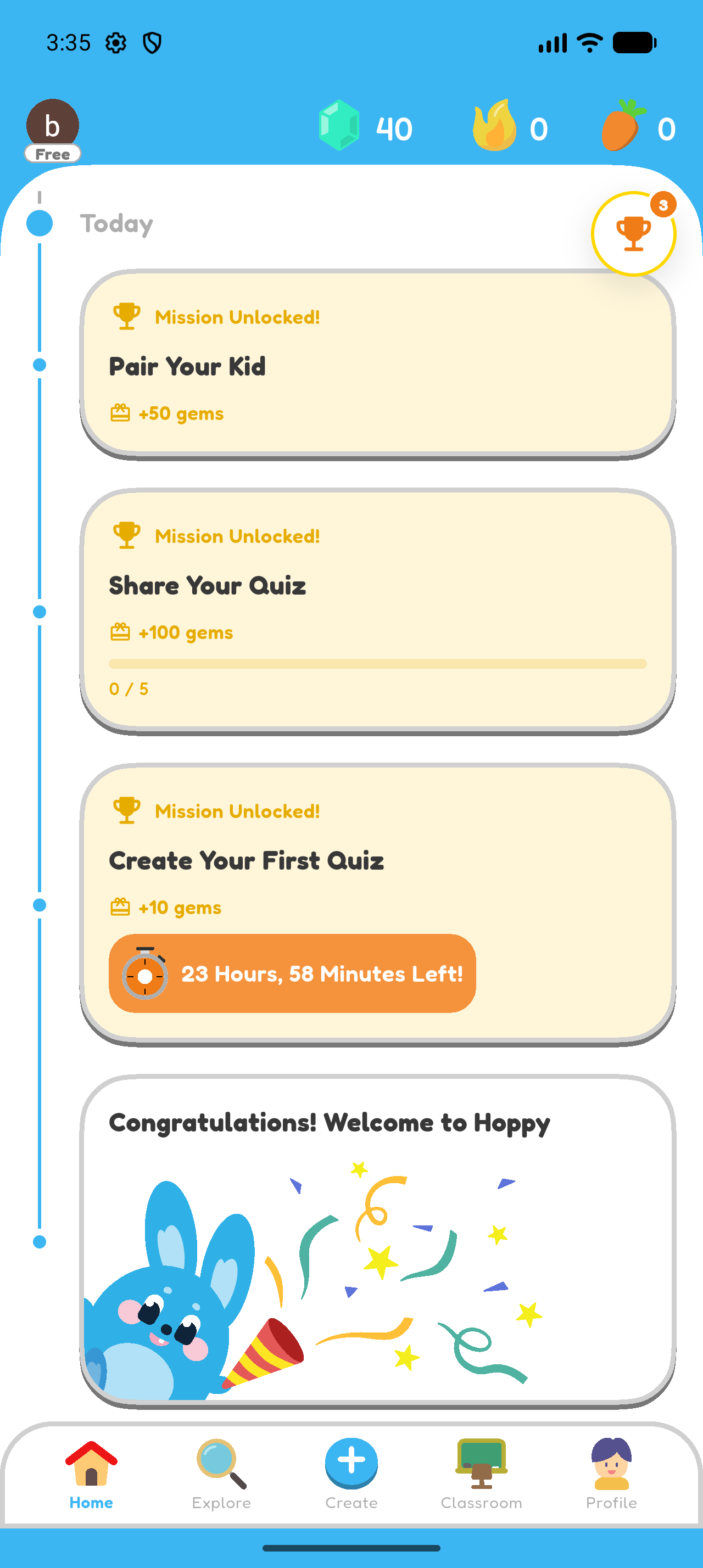
Hoppy Home screen with Explore in the bottom navigation.
Open Explore from the bottom navigation. The red outline marks the button.
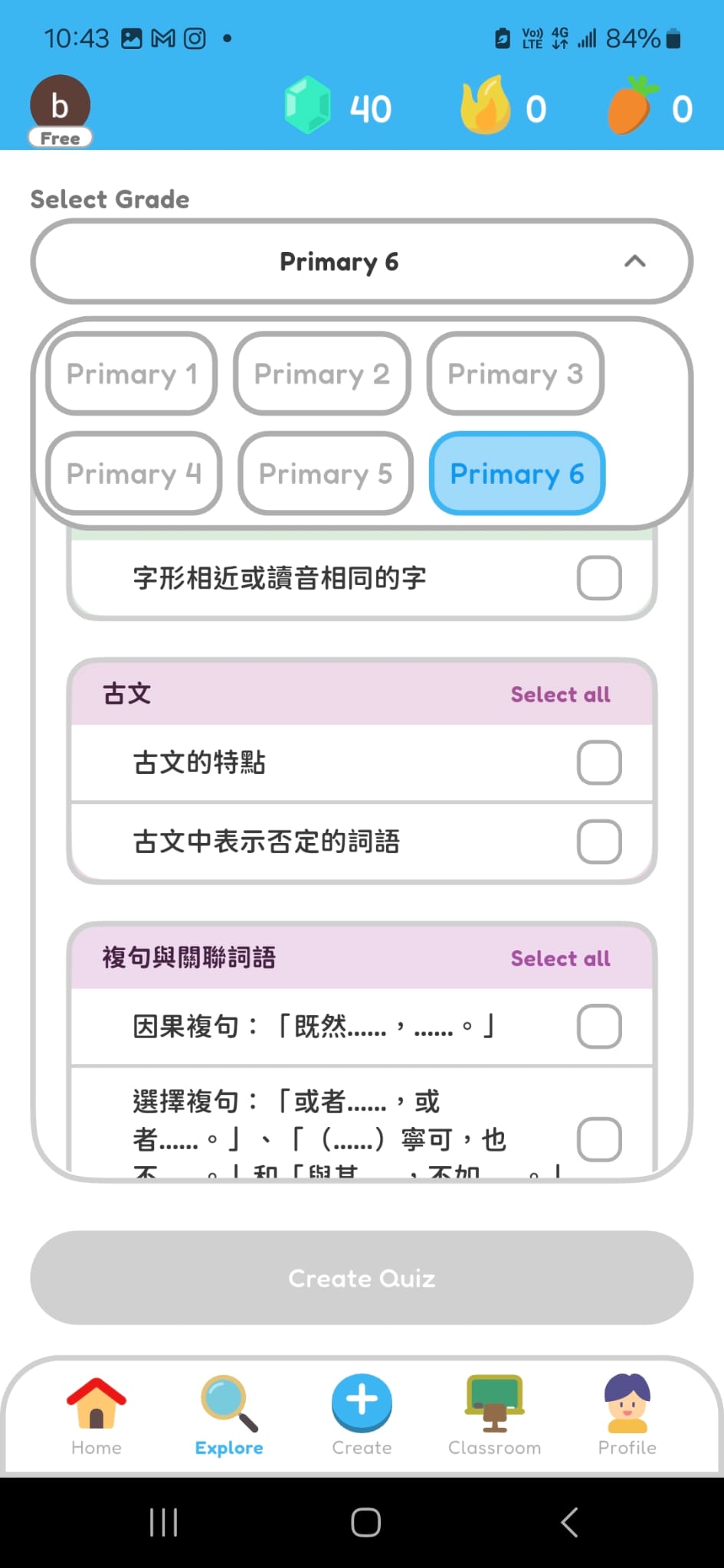
Hoppy Explore screen with the grade selector expanded and Primary 6 selected.
Choose the grade level. Primary 6 is highlighted in this example.

Choose Subject and Learning Units

Hoppy calls each curriculum topic within a subject a learning unit. For Hong Kong courses, Hoppy organizes these units from the Hong Kong Education Bureau curriculum guides; senior-secondary subjects follow the relevant HKDSE Curriculum and Assessment Guides.

  1. Choose the subject.
  2. Choose the learning units for the quiz.
  3. Select Create Quiz.
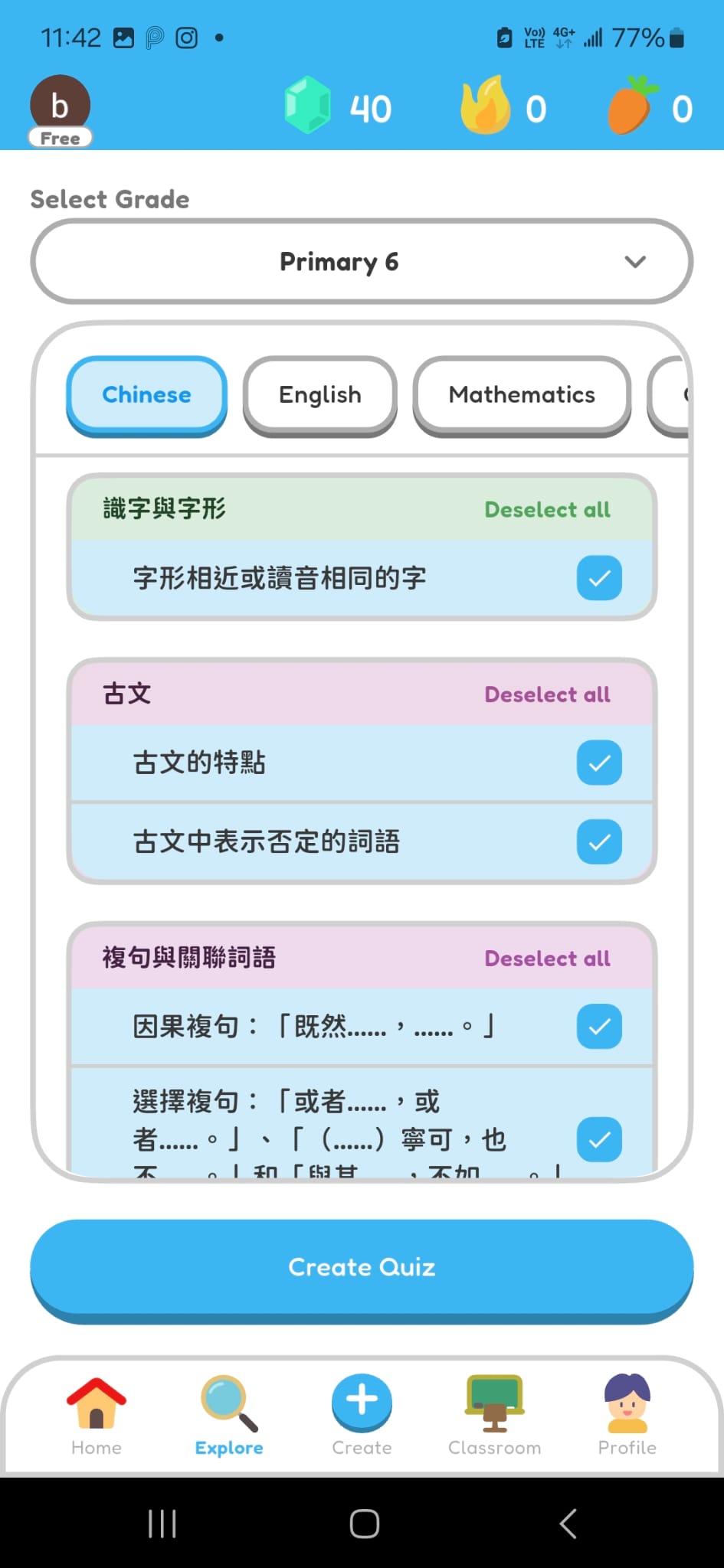
Hoppy Explore screen with Chinese selected, several learning units checked, and the Create Quiz button enabled.
Choose a subject, use the tick buttons to select learning units, and then press Create Quiz. The red outlines mark each control.

Generate Questions with Custom Made

  1. Set the expected duration.
  2. Choose the number of questions.
  3. Select Custom Made.
  4. Scroll down and choose the explanation language.
  5. Press Confirm to spend the displayed gems and start generating the quiz.
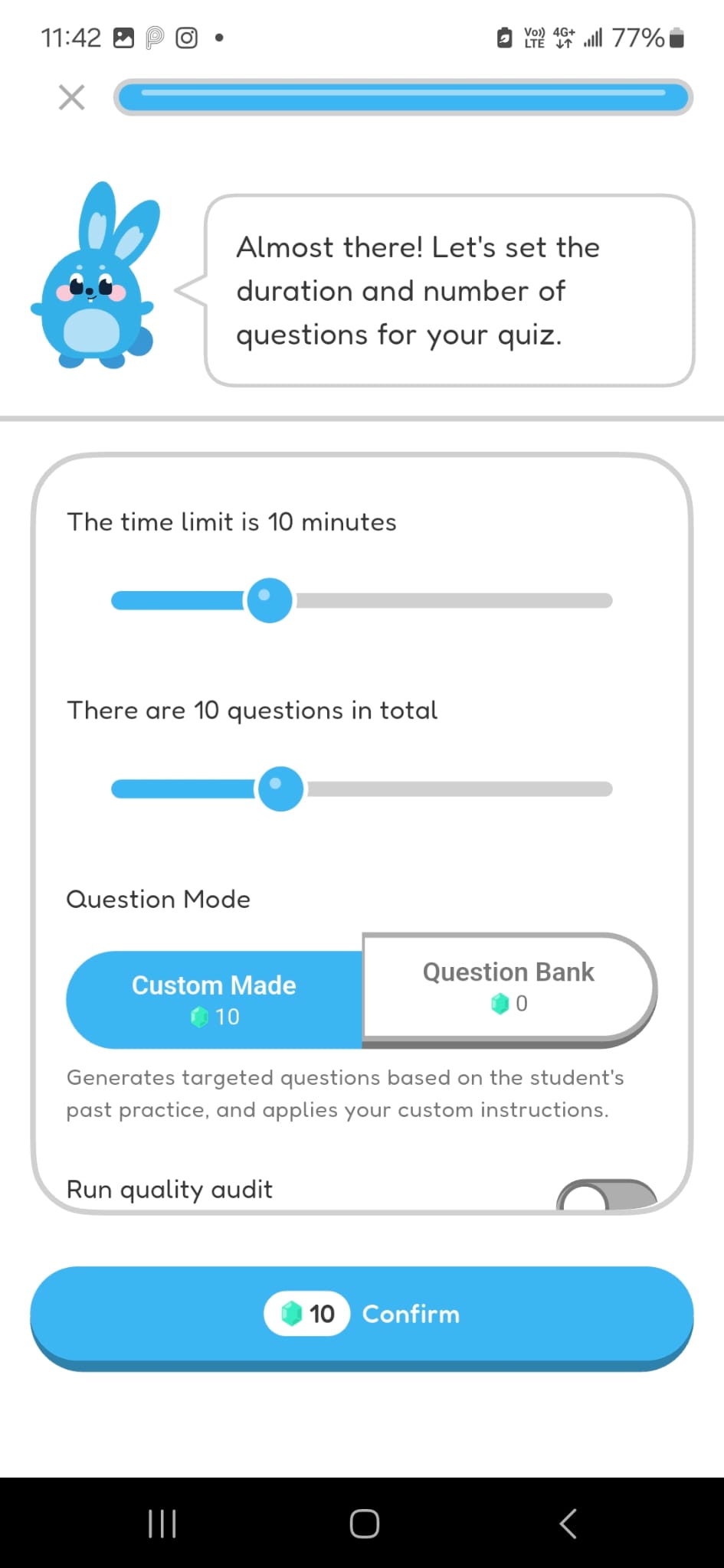
Hoppy quiz setup screen showing a 10-minute duration, 10 questions, Custom Made selected, and Question Bank as the alternative.
Set the quiz duration and number of questions, then select Custom Made. The red outlines mark all three controls.
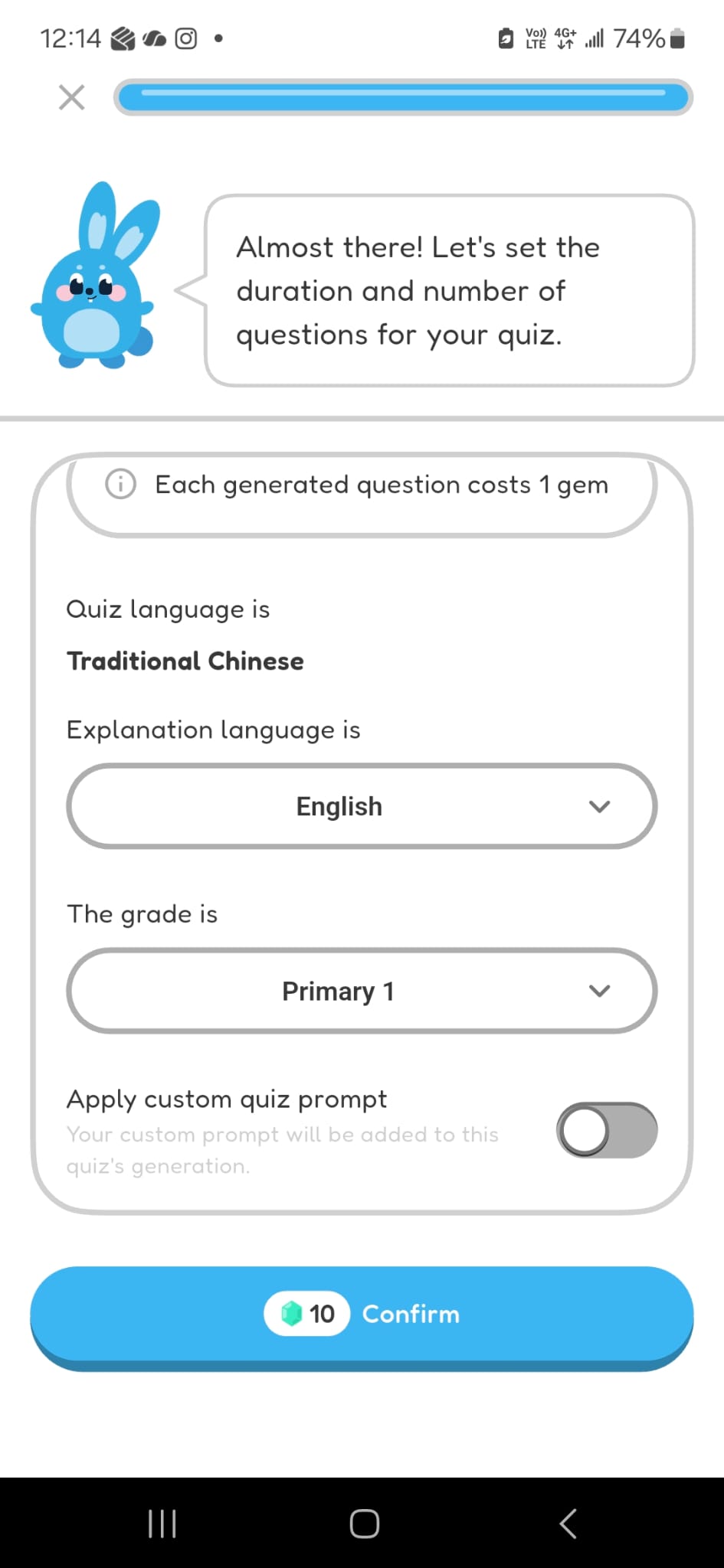
Hoppy quiz setup screen showing the explanation-language selector and Confirm button.
Choose the explanation language and check the gem cost. Pressing Confirm spends the displayed gems and starts generating the quiz.

Review Generated Quiz

  1. Review the quiz title, grade level, subject, question count, and duration.
  2. Review the description and related learning units.
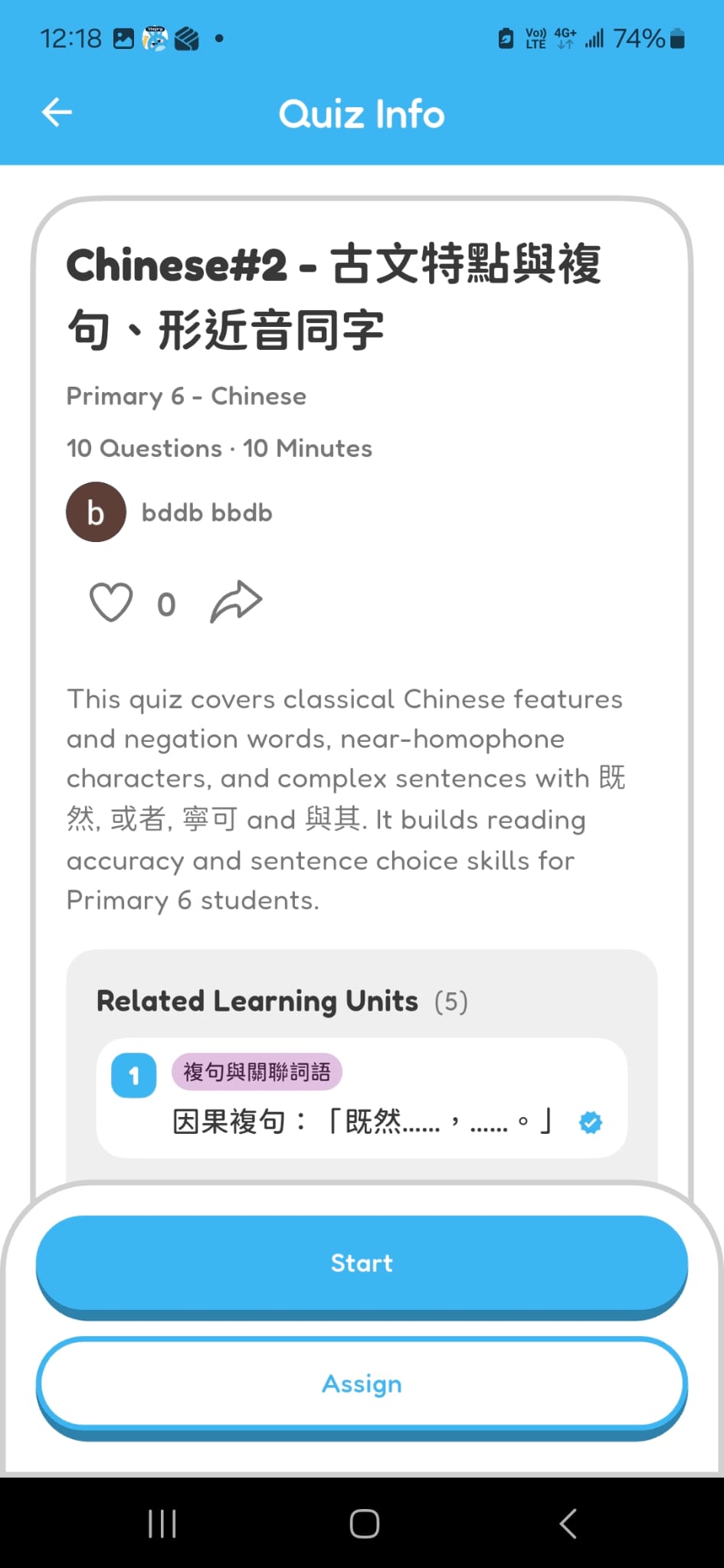
Hoppy Quiz Info screen showing a generated Primary 6 Chinese quiz with 10 questions, a 10-minute duration, a description, and related learning units.
When generation finishes, Hoppy opens the Quiz Info page.
Chapter 1 complete

Great work! You created and reviewed a quiz with Explore.