Hoppy Teacher Guide

Chapter 9 of 11

Advanced Quiz Options and Preferences

Save your usual grades, subjects, languages, and quiz instructions so new quizzes start closer to your teaching needs.

← Topic Outline
Chapter 9

Advanced Quiz Options and Preferences

Save your usual grades, subjects, languages, and quiz instructions so new quizzes start closer to your teaching needs.

Set Usual Grades and Preferred Subjects

Open Profile, select the settings gear, and open User Profile.

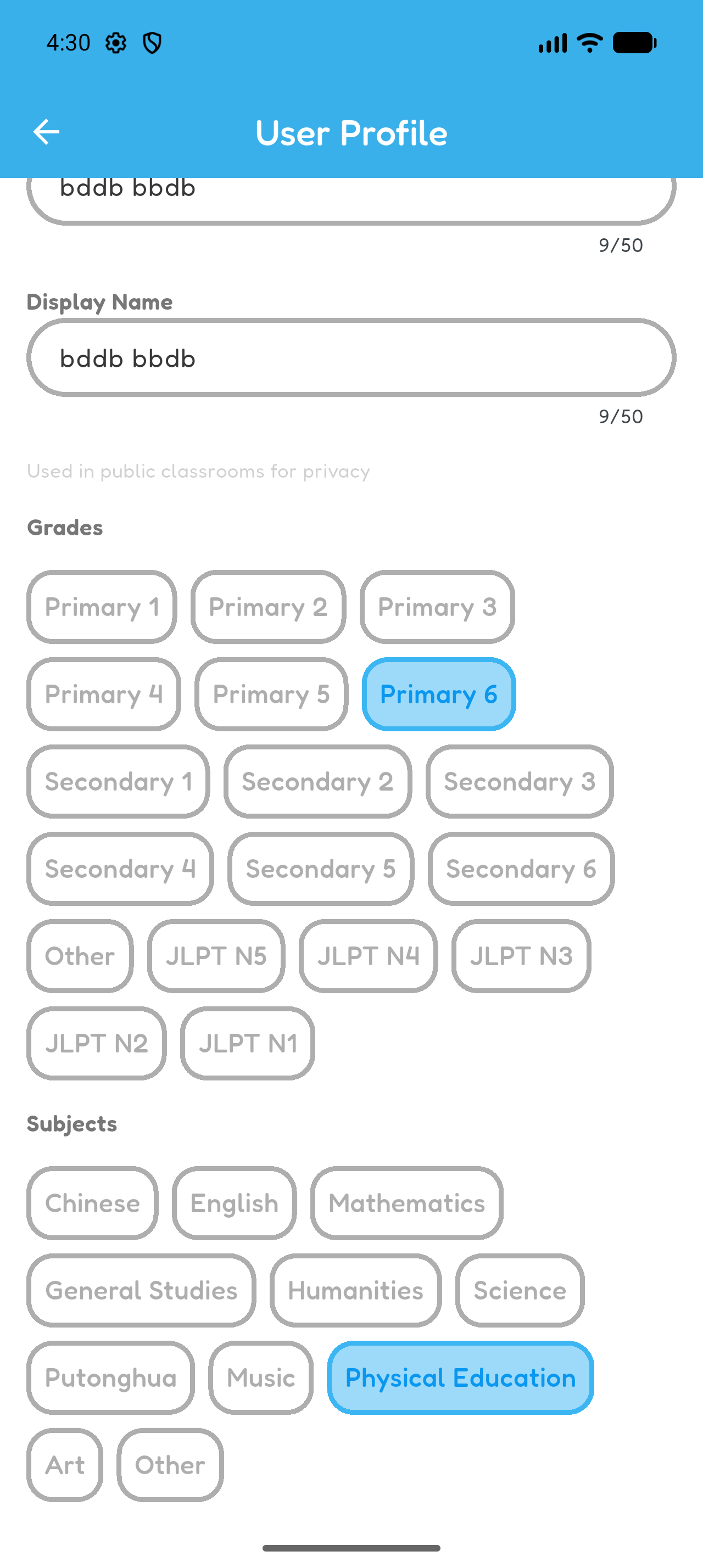
  1. Choose the grades you usually teach.
  2. Choose your preferred subjects.
  3. Wait for the changes to save automatically.
  4. Open Explore to see the result.

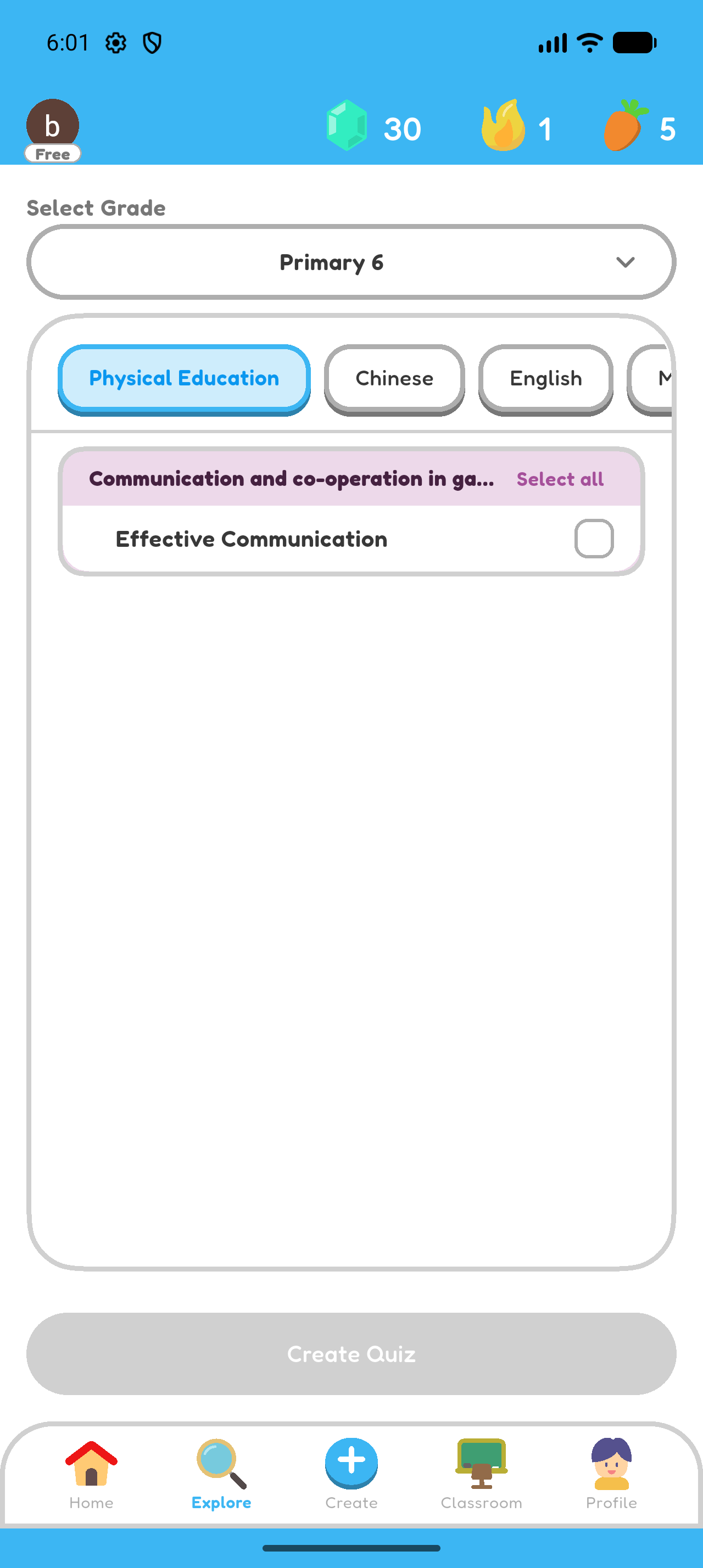
After saving, Explore selects one of your usual grades and moves your preferred subjects to the front. The available subject list does not change.
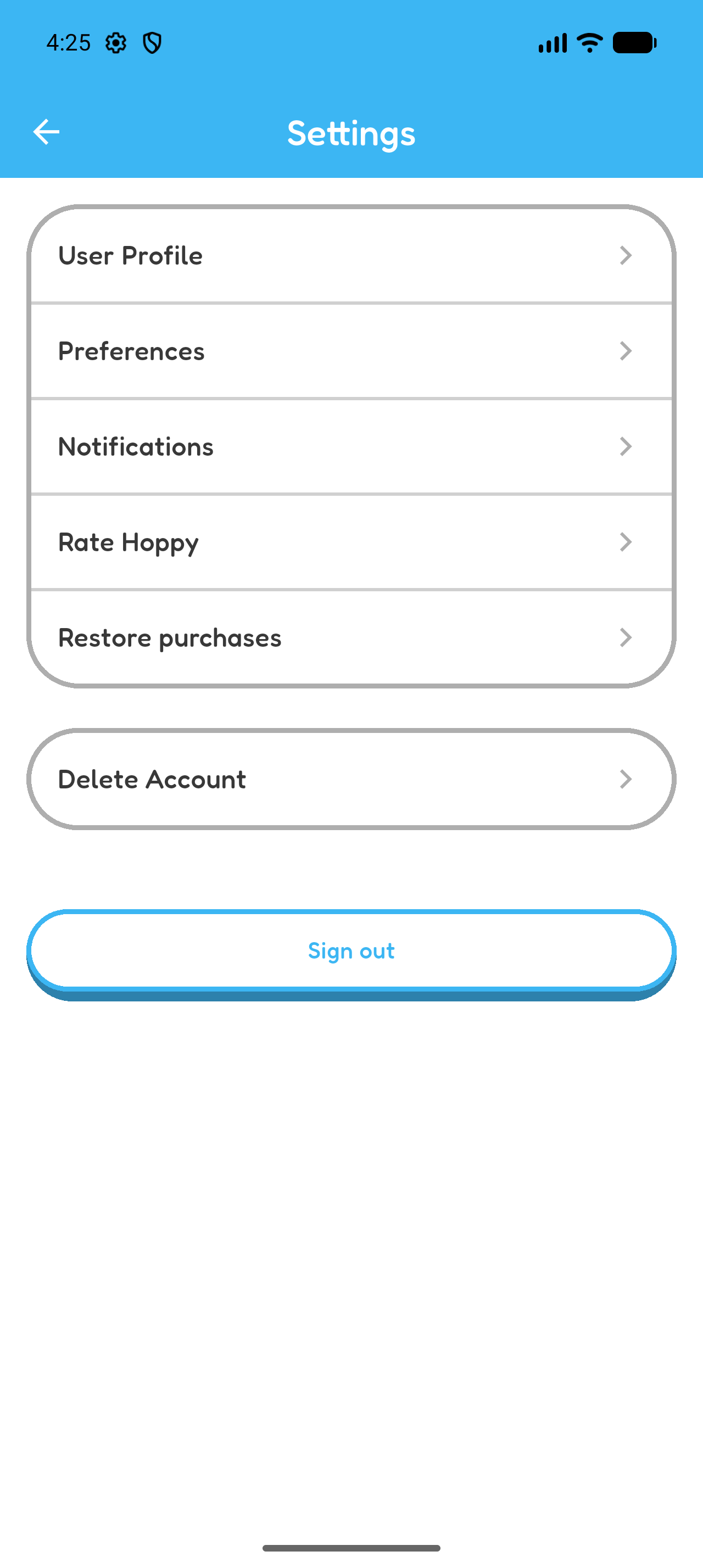
Hoppy Settings page showing User Profile and Preferences.
Open Profile, select the settings gear, then open User Profile.
User Profile page showing selectable grades and preferred subjects.
Before: save the grades you usually teach and the subjects you want shown first.
Explore showing Primary 6 selected and Physical Education placed first after teaching preferences are saved.
After: Explore opens with a usual grade selected and a preferred subject moved to the front. Other subjects remain available.

Set App and Quiz Languages

From Settings, open Preferences.

  • Preferred Language changes Hoppy’s menus, buttons, and instructions.
  • Preferred Quiz Language provides the starting language for newly created quiz content.
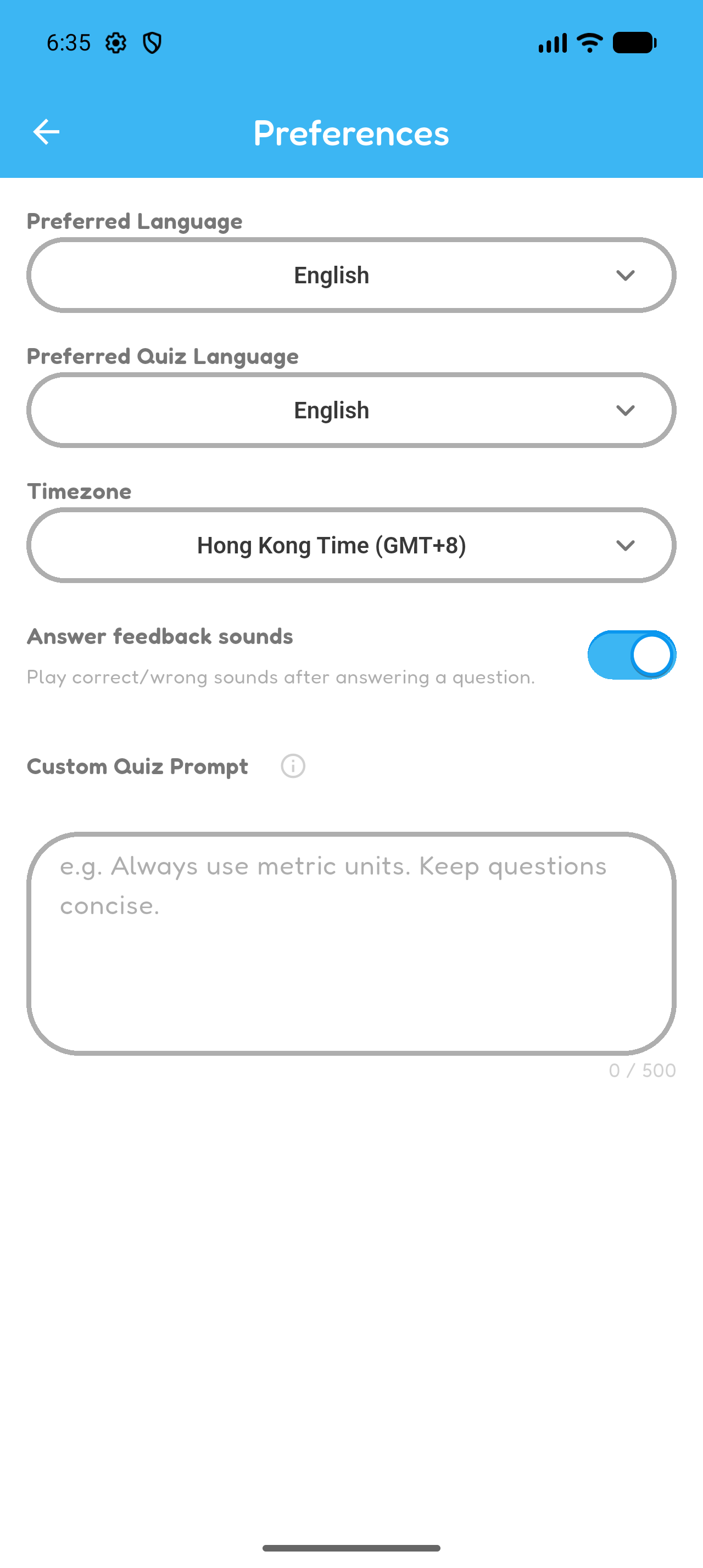
Preferences page with English selected for both Preferred Language and Preferred Quiz Language.
Choose the language used by Hoppy’s interface and the starting language for newly created quizzes.
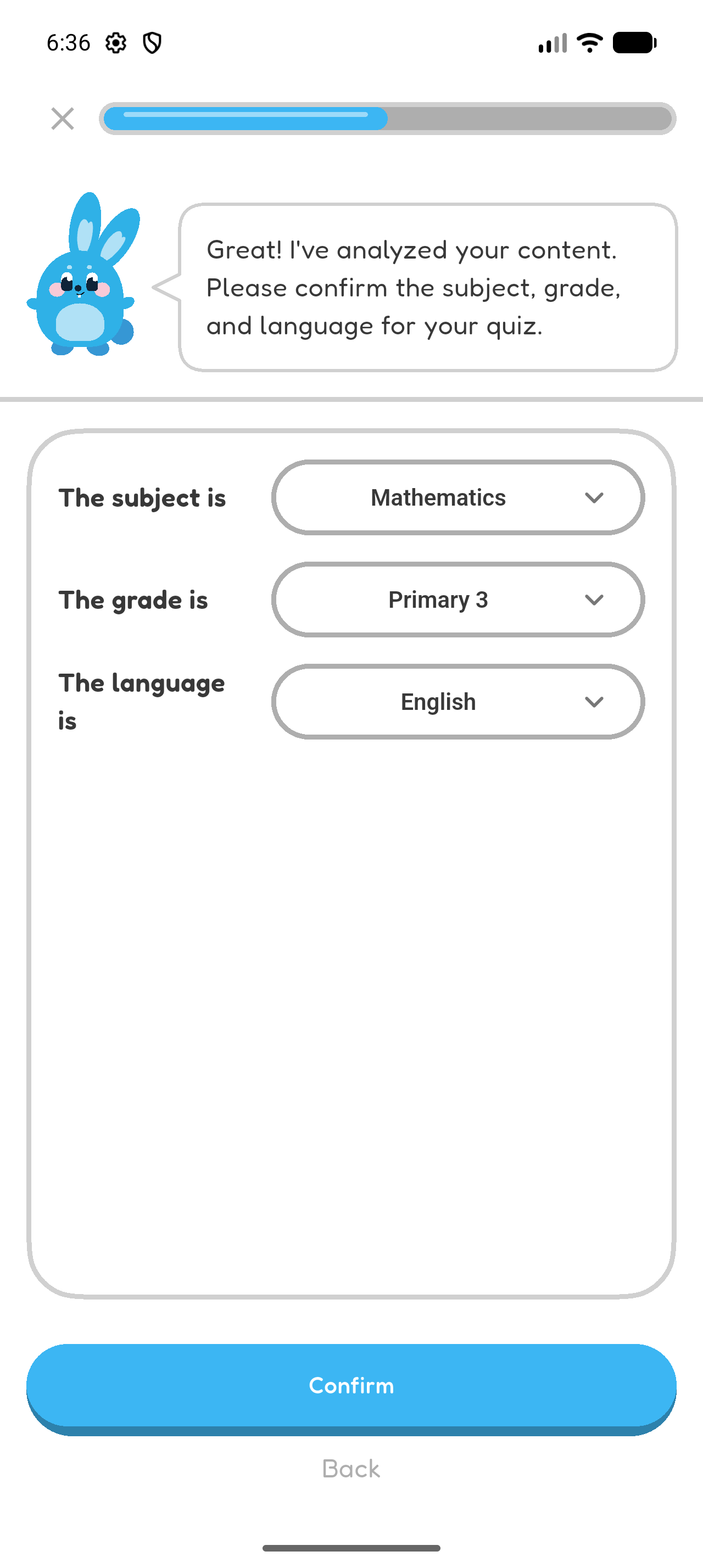
Create quiz confirmation screen showing the interface in English and English selected as the quiz language.
Effect: Hoppy’s instructions appear in the preferred app language, while the language for a new quiz starts with the preferred quiz language.

Save Quiz Instructions

  1. On the Preferences page, find Custom Quiz Prompt.
  2. Enter reusable instructions. For example: Include real-life examples; keep each question concise; or use Traditional Chinese explanations suitable for Secondary 2 students.
  3. Wait for the prompt to save automatically.
  4. During quiz creation, turn on Apply custom quiz prompt when you want to use the saved instructions.
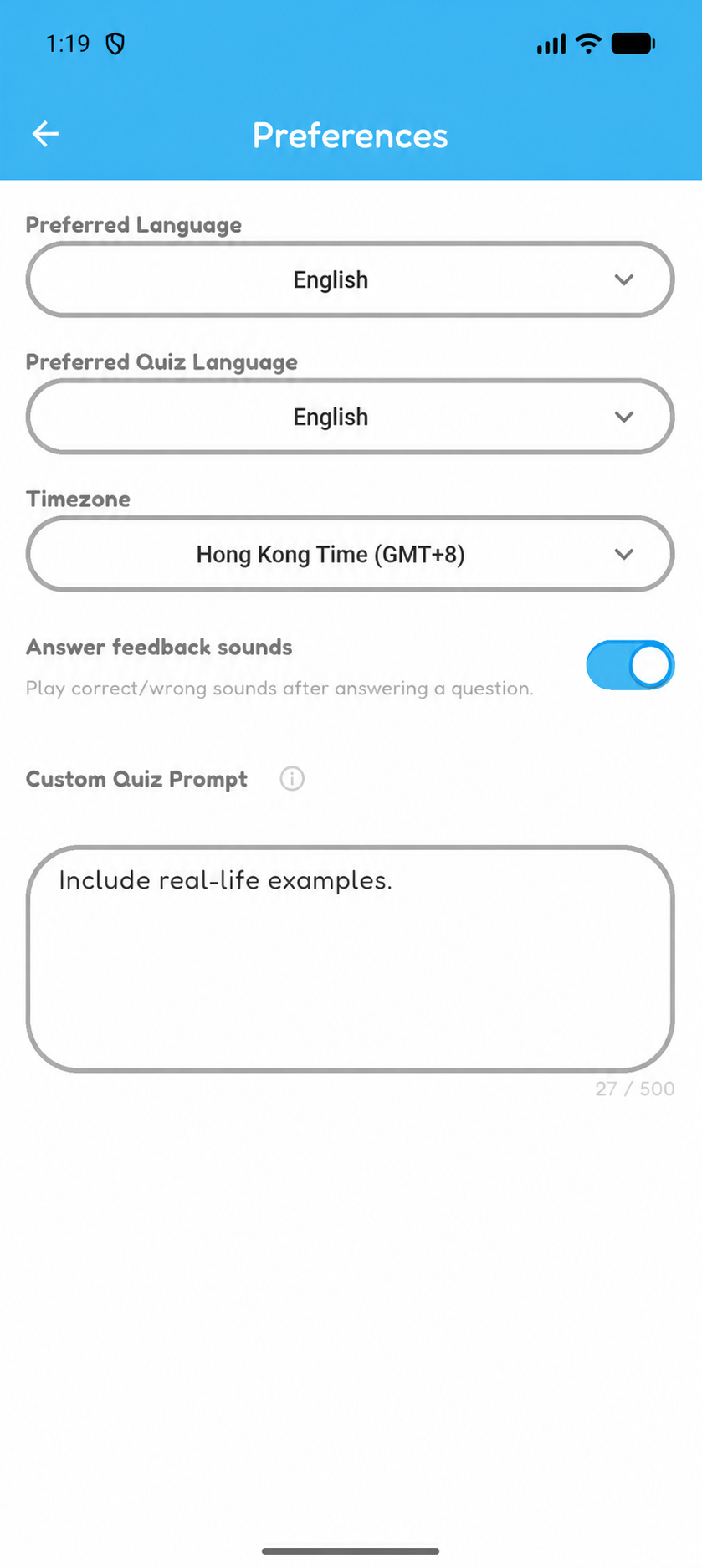
Hoppy Preferences page with “Include real-life examples.” entered in the Custom Quiz Prompt field.
Enter a simple reusable instruction. This example asks Hoppy to include real-life examples.
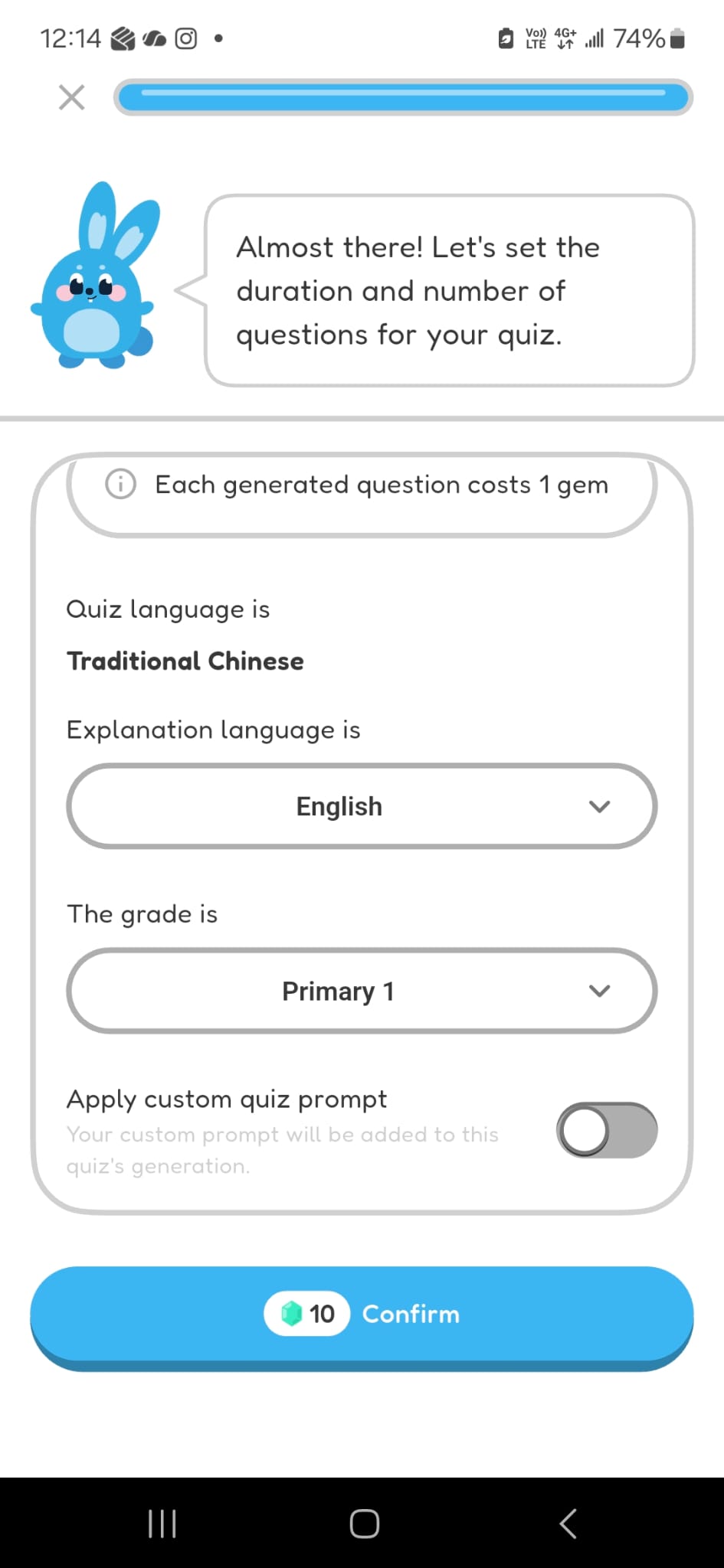
Quiz settings with the Apply custom quiz prompt switch turned off.
Turn on Apply custom quiz prompt to use the saved instructions for this quiz.

Use the Others Learning Unit

Others is a fallback in Create for content that does not match a specific learning unit.

  • Hoppy may suggest or select Others when your quiz description or reference materials do not match the available learning units.
  • Use Others only when no specific learning unit accurately describes the content.
  • Provide a clear quiz description or suitable reference materials so Hoppy knows what questions to generate.
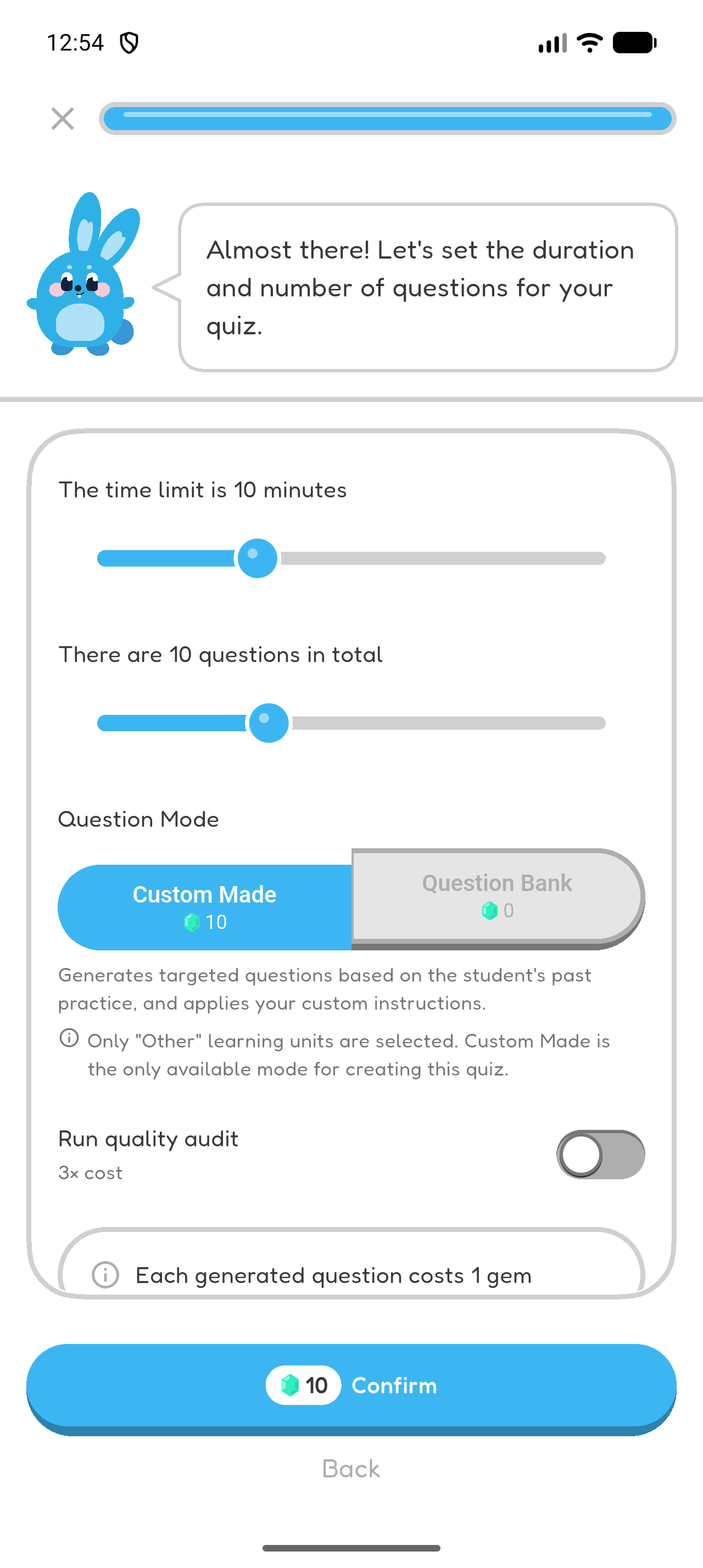
  • Select Custom Made. Question Bank requires at least one specific learning unit with existing questions.
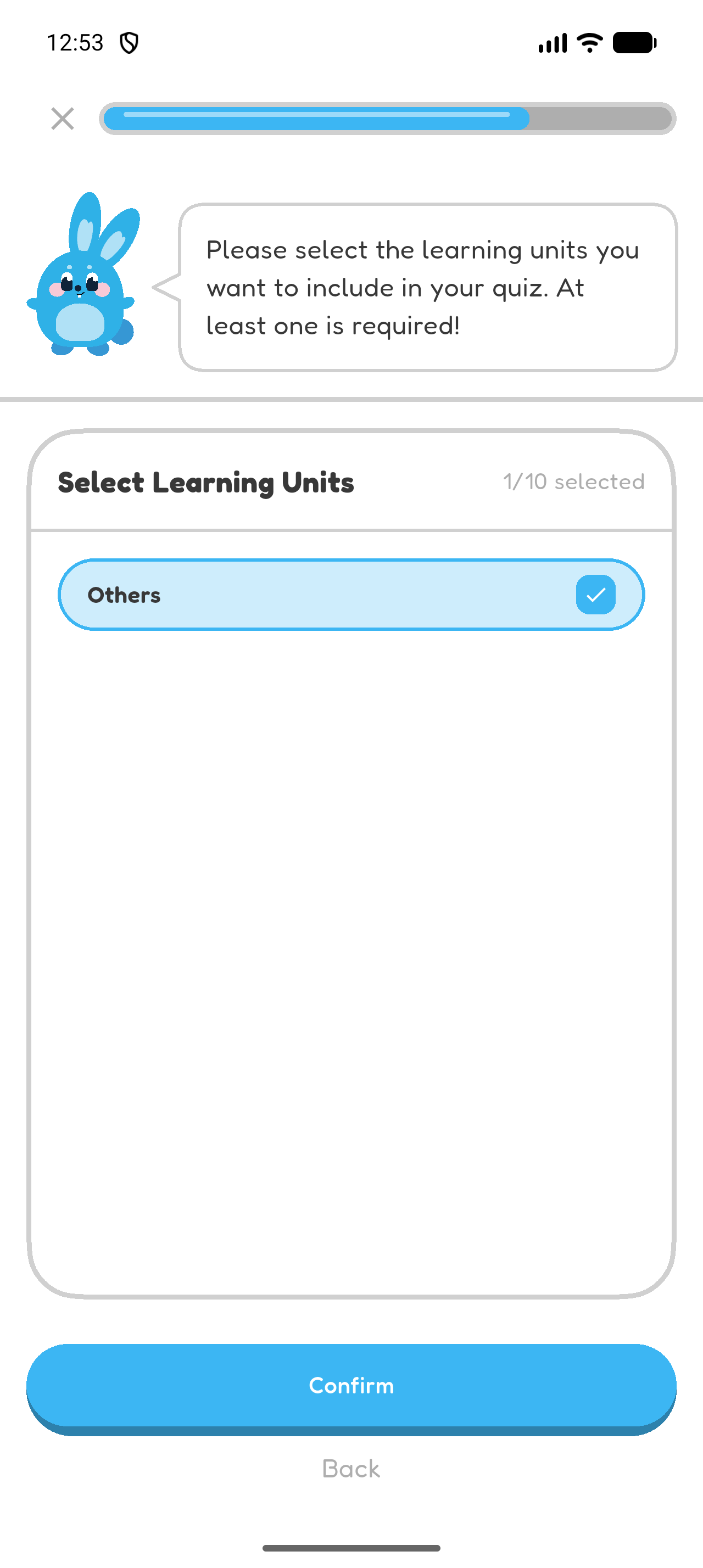
Hoppy Create showing Others automatically selected as the only learning unit for an unmatched quiz topic.
When the requested content does not match a specific learning unit, Hoppy can select Others automatically.
Quiz settings showing Custom Made selected and Question Bank unavailable because only the Others learning unit is selected.
With only Others selected, use Custom Made. Question Bank is unavailable because Others has no existing question pool.
Chapter 9 complete

You are ready to use Hoppy’s advanced quiz options and preferences.